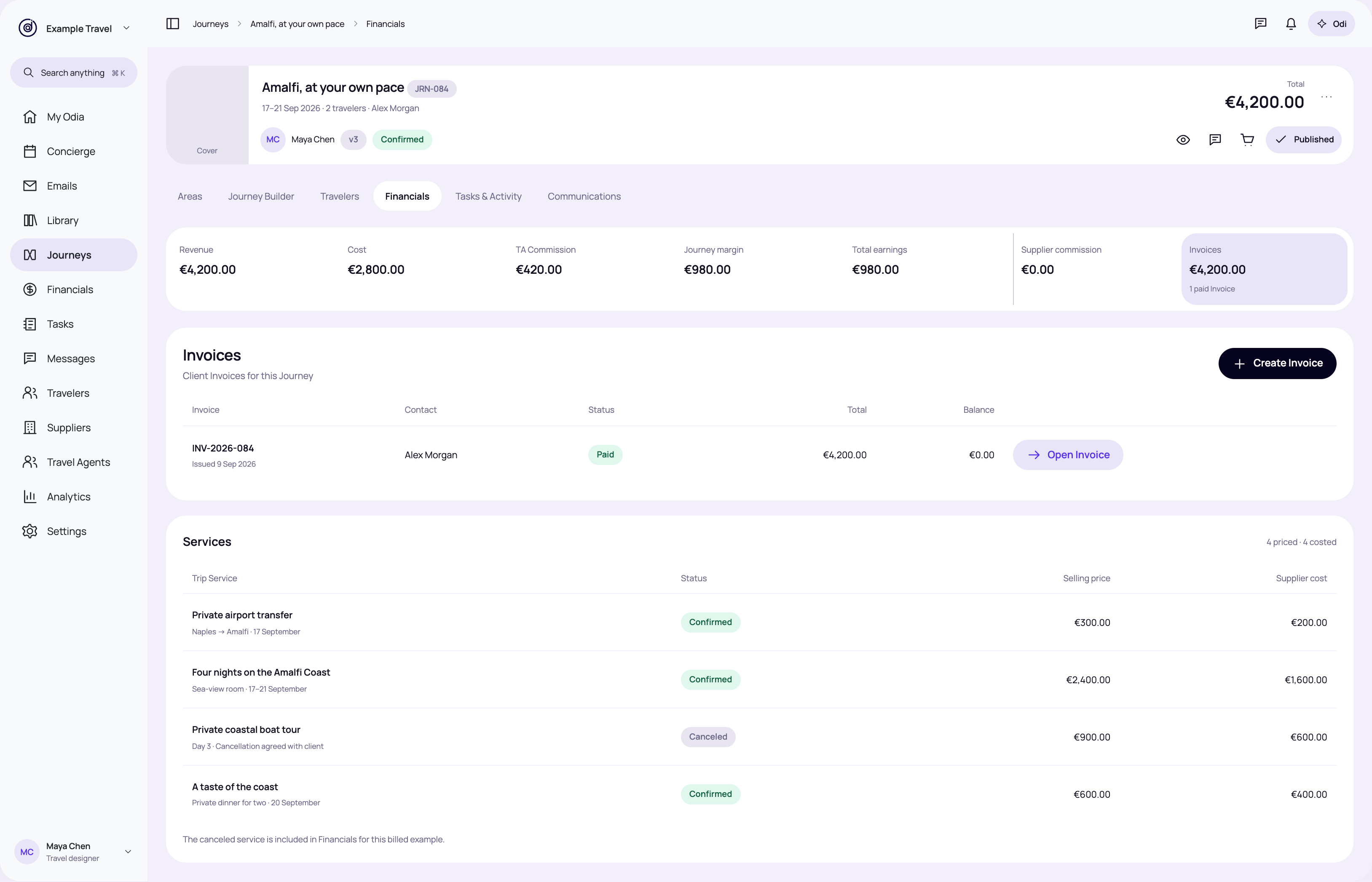
Journey · paid Invoice
Keep the current Journey header, tabs and Financials lenses. Open the paid Invoice from the Invoices lens.
Review this state → · High-resolution PNGA complete product review of the proposed record-only MVP.
The screen selector loads an independent example. Buttons inside the app continue the current example and keep its values. Reset restores the starting Journey. Saving is simulated locally. No production data, payment, email or accounting system is connected.
Keep the current Journey header, tabs and Financials lenses. Open the paid Invoice from the Invoices lens.
Review this state → · High-resolution PNG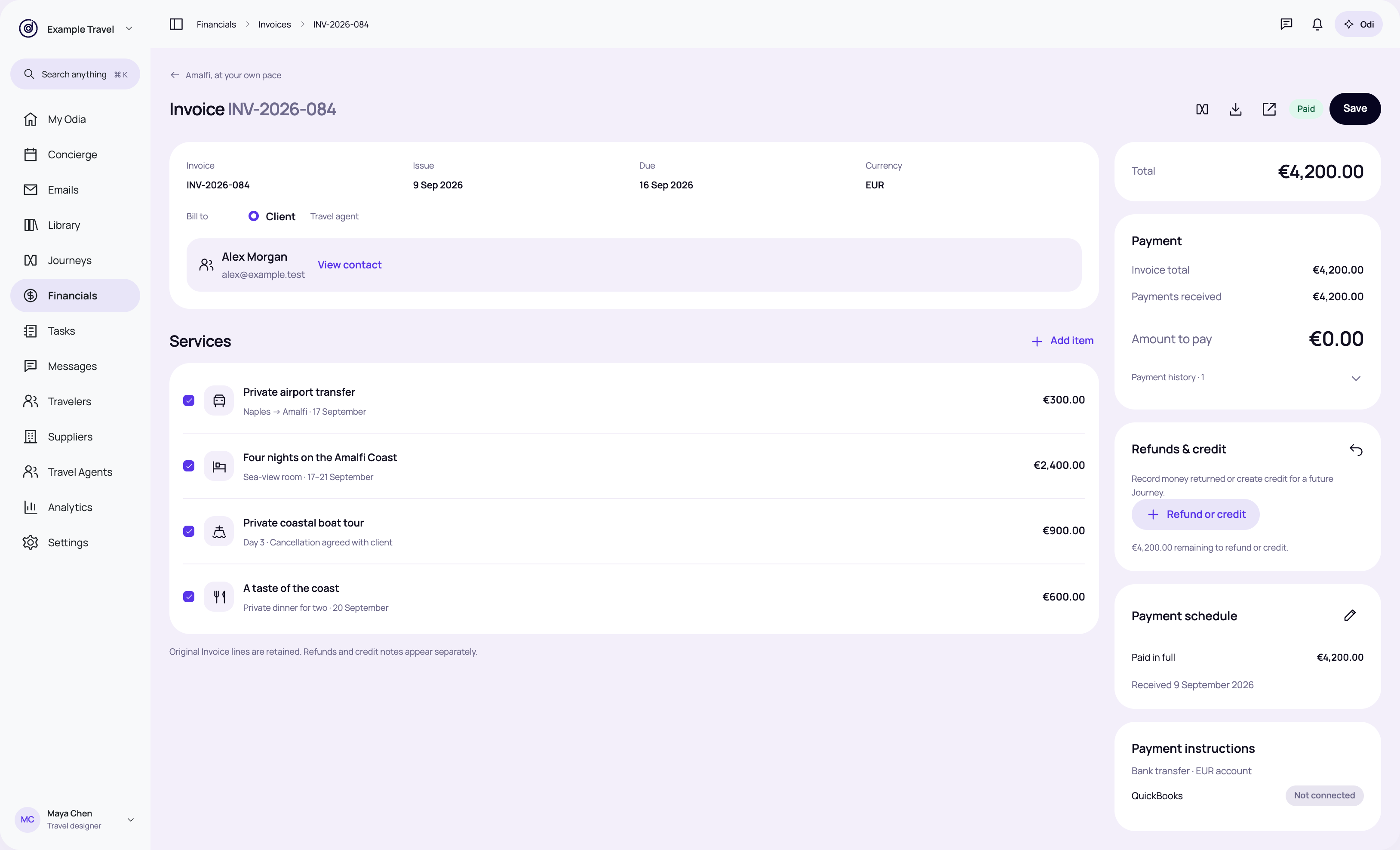
Add a compact Refunds & credit section below Payment. One entry action opens the shared form.
Review this state → · High-resolution PNG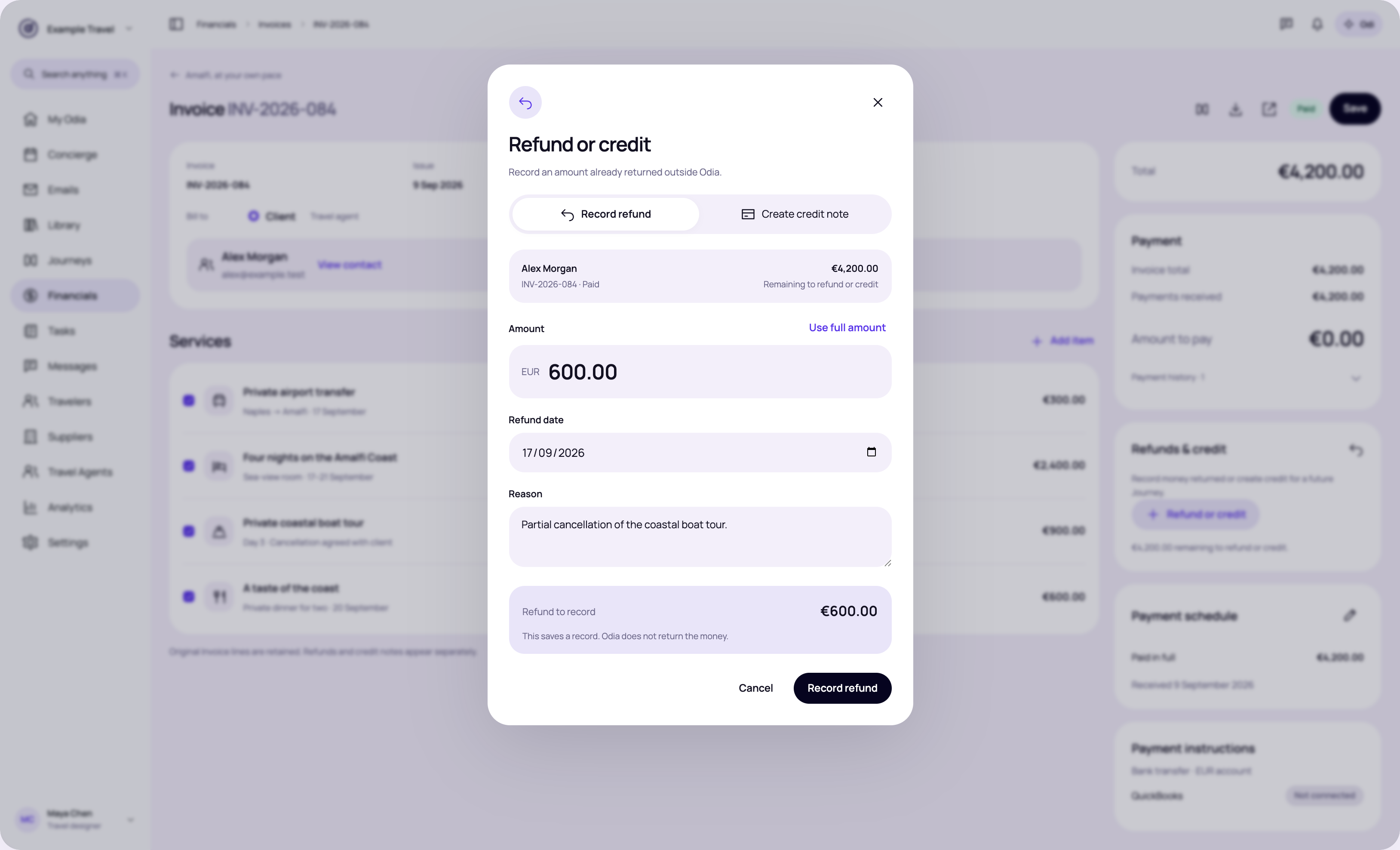
A short form records a refund already made outside Odia. Contact and currency come from this Invoice.
Review this state → · High-resolution PNG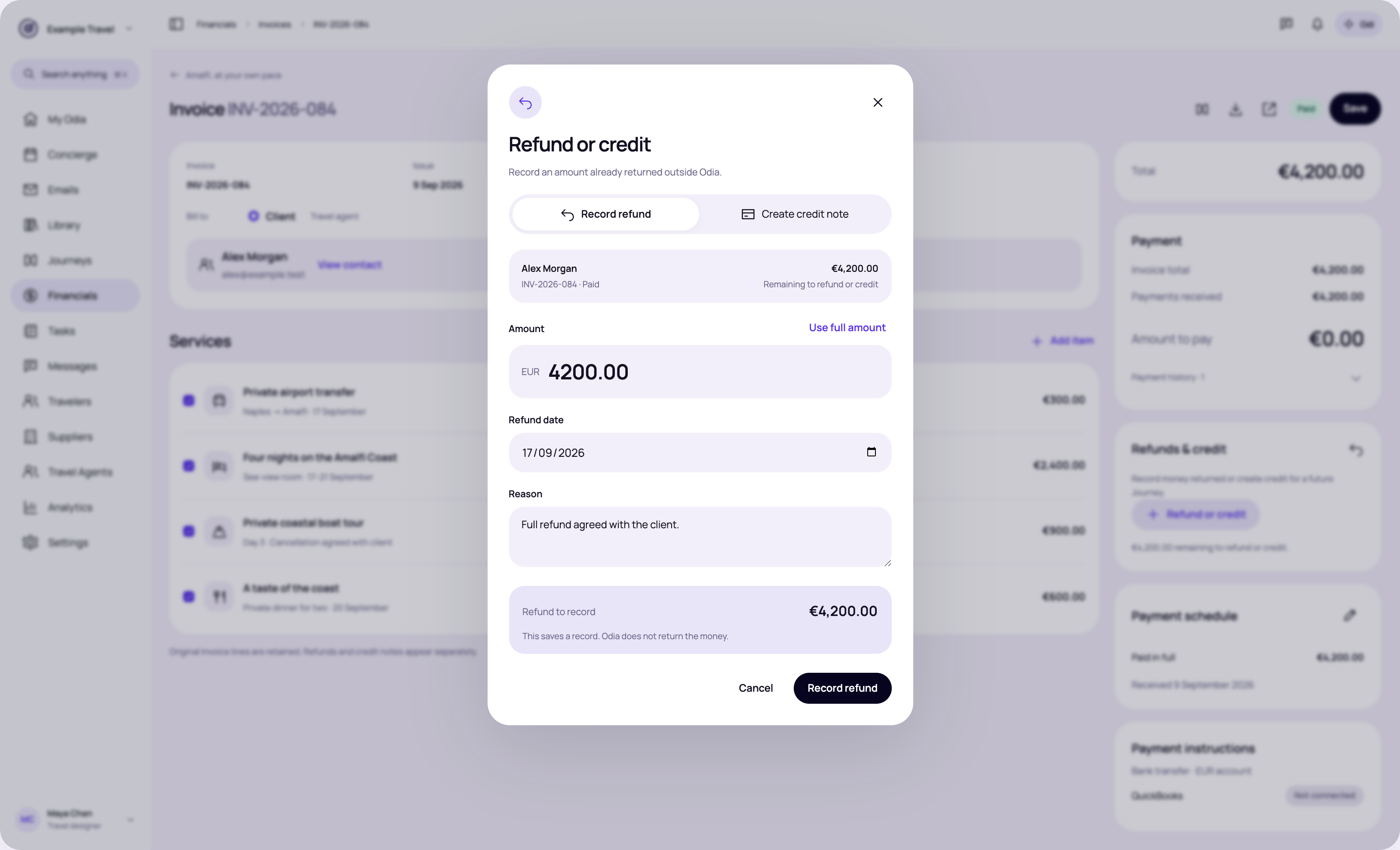
Use the full remaining amount with one click. The date and reason remain explicit.
Review this state → · High-resolution PNG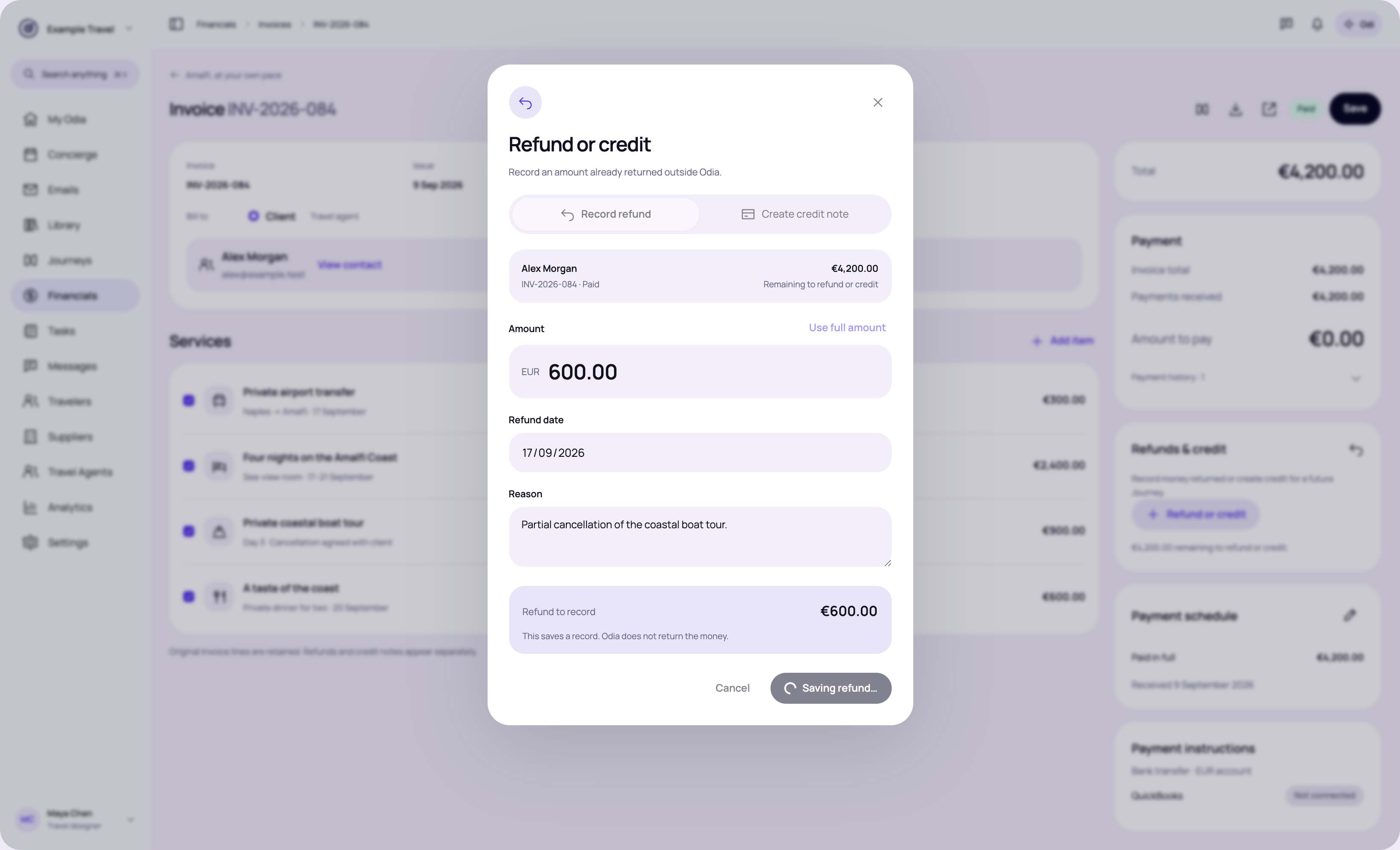
Keep the dialog open and disable duplicate submission while Saving refund… is visible.
Review this state → · High-resolution PNG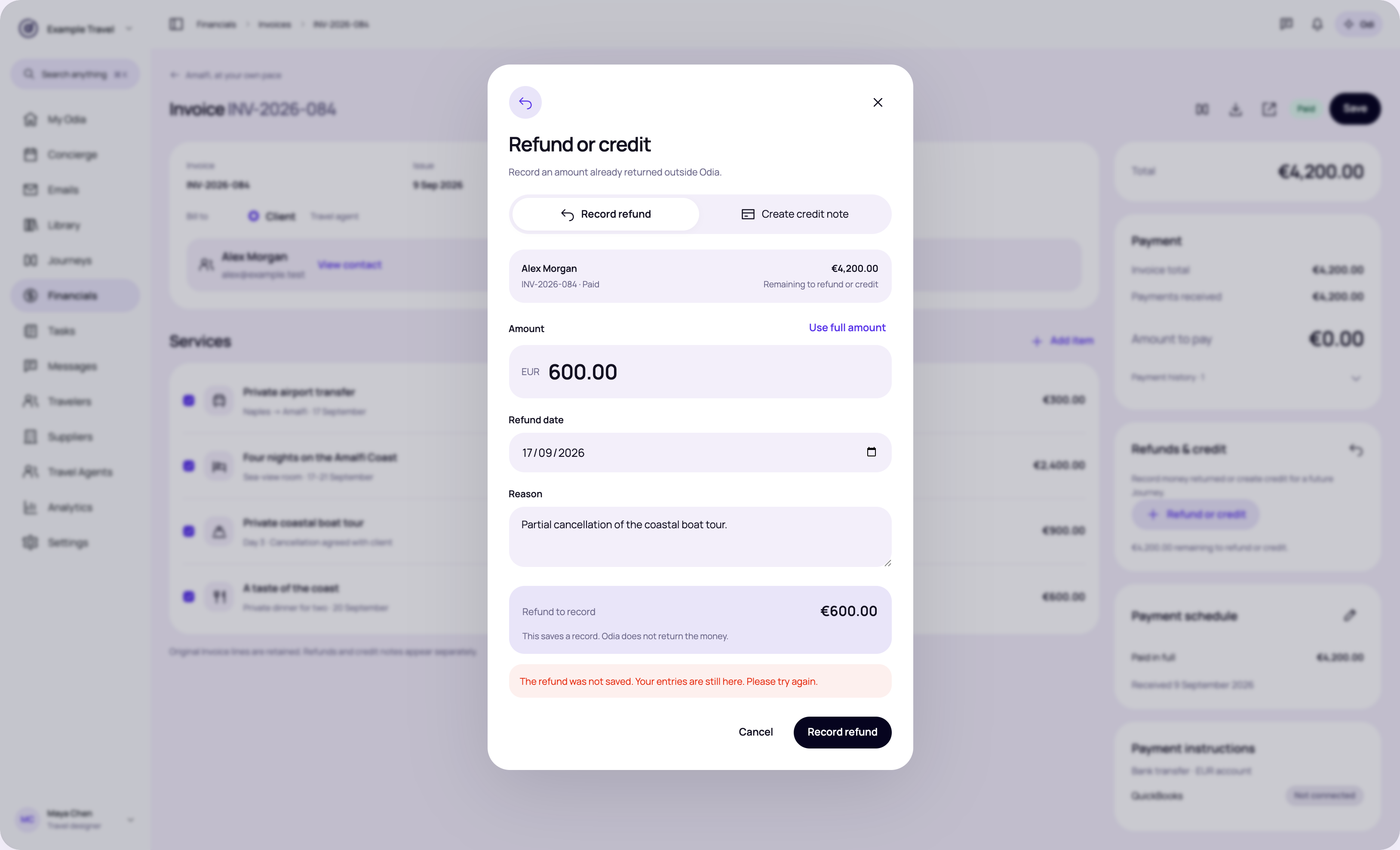
Keep entered values and show an inline error with the same Save action available for retry.
Review this state → · High-resolution PNG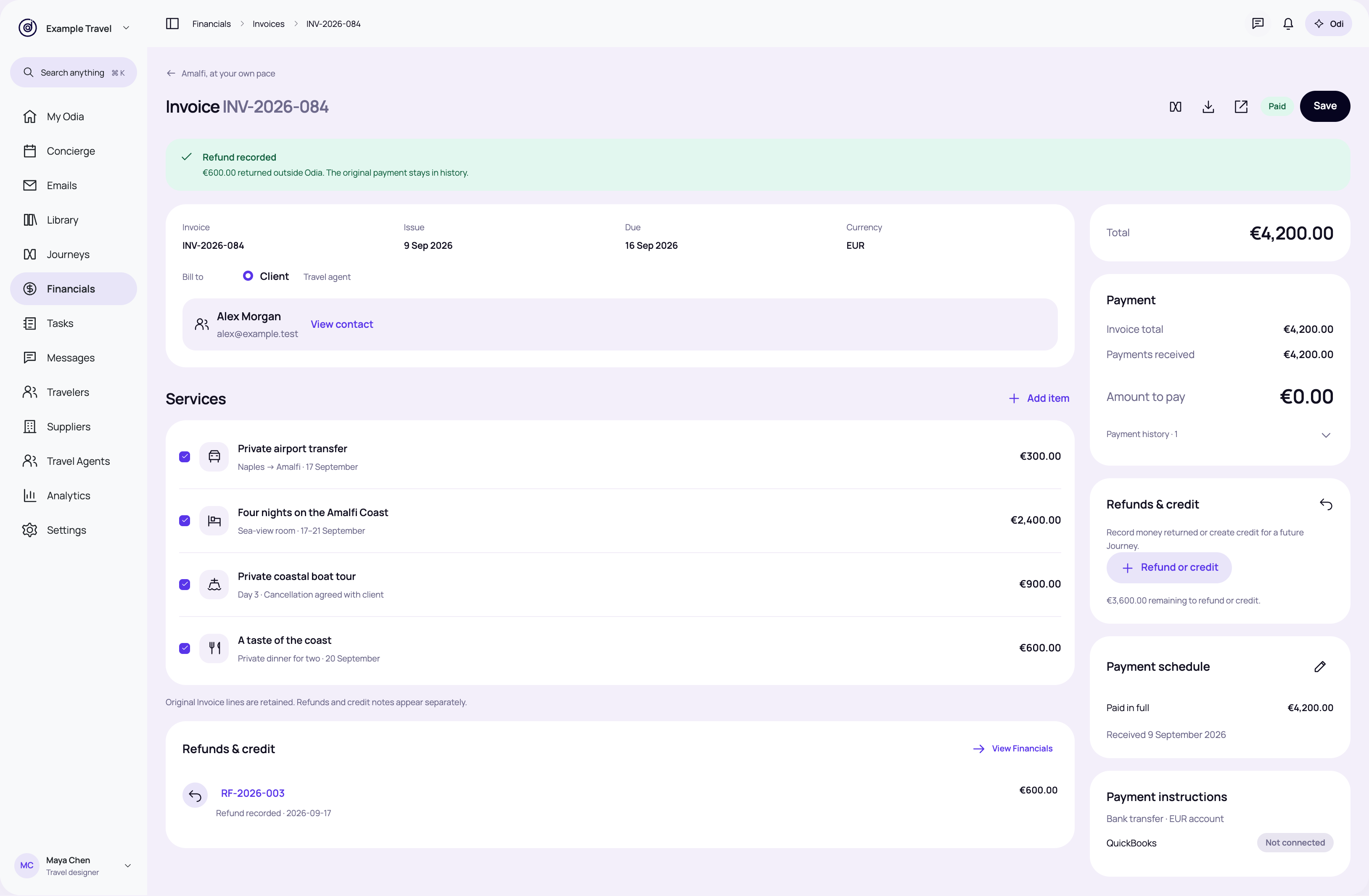
Show the dated refund beside original payment history. Preserve the original Invoice and receipt.
Review this state → · High-resolution PNG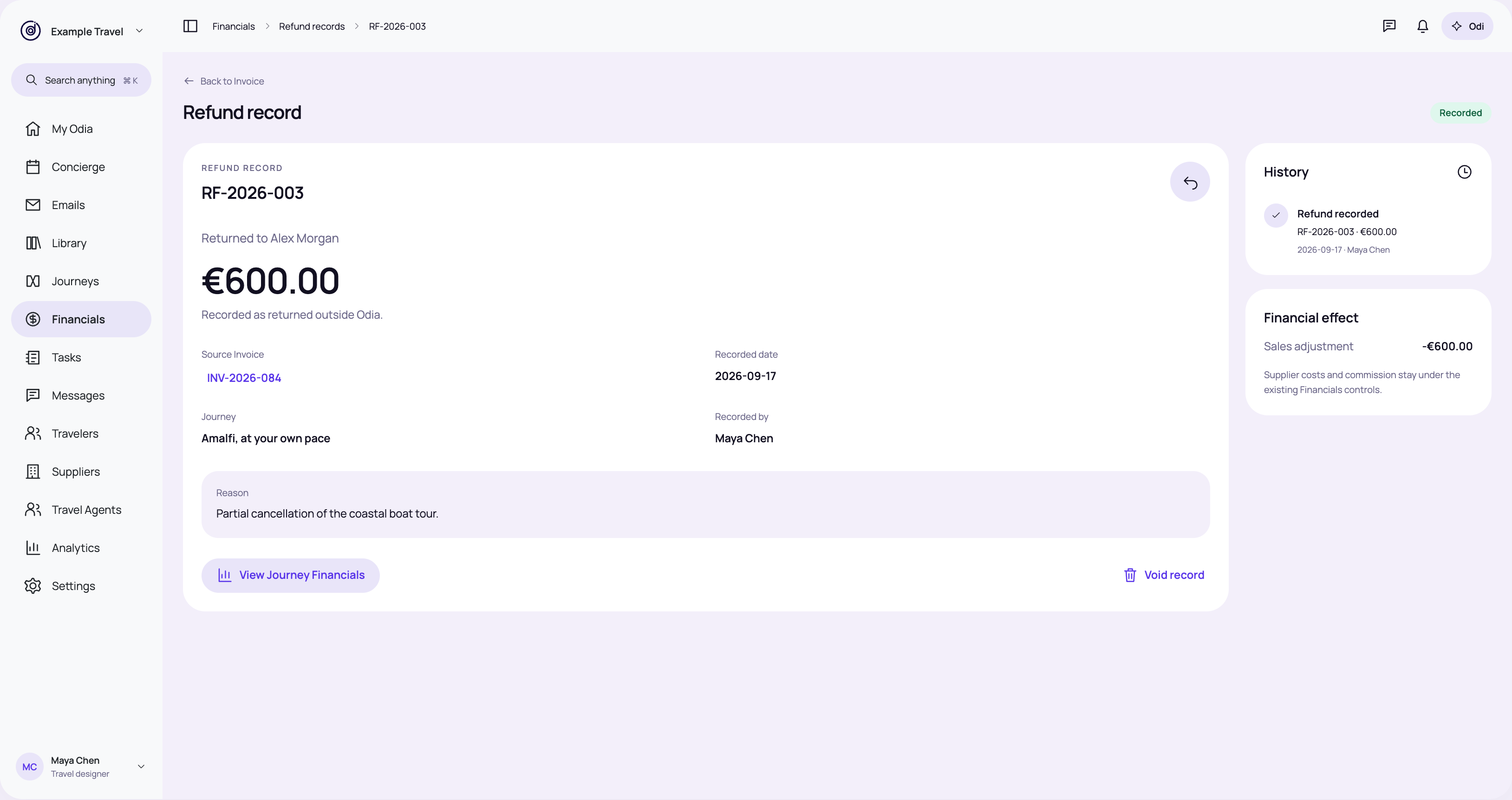
Open the record to read its amount, source, reason and author.
Review this state → · High-resolution PNG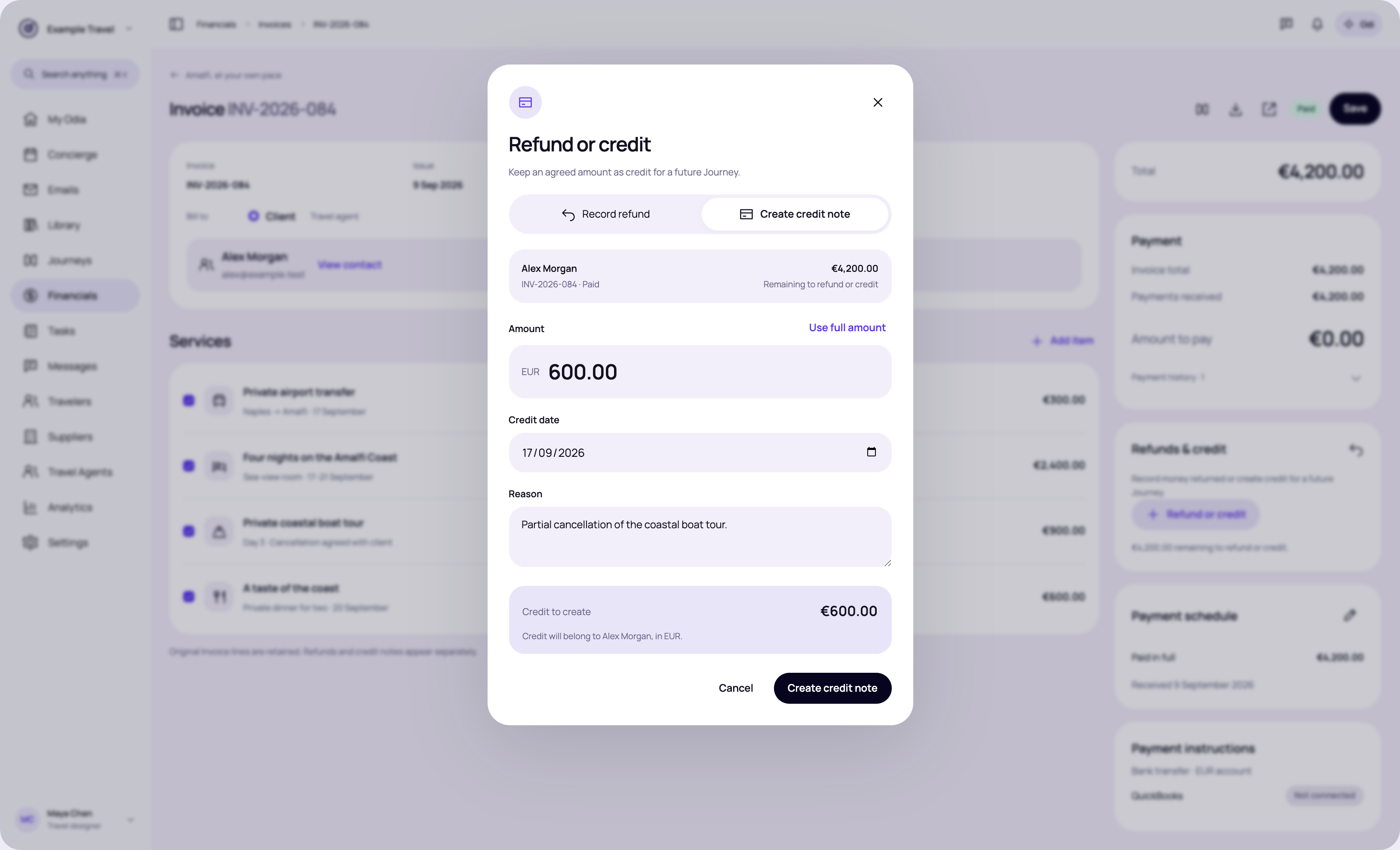
Switch to credit in the same form. The preview shows how much Alex will have available.
Review this state → · High-resolution PNG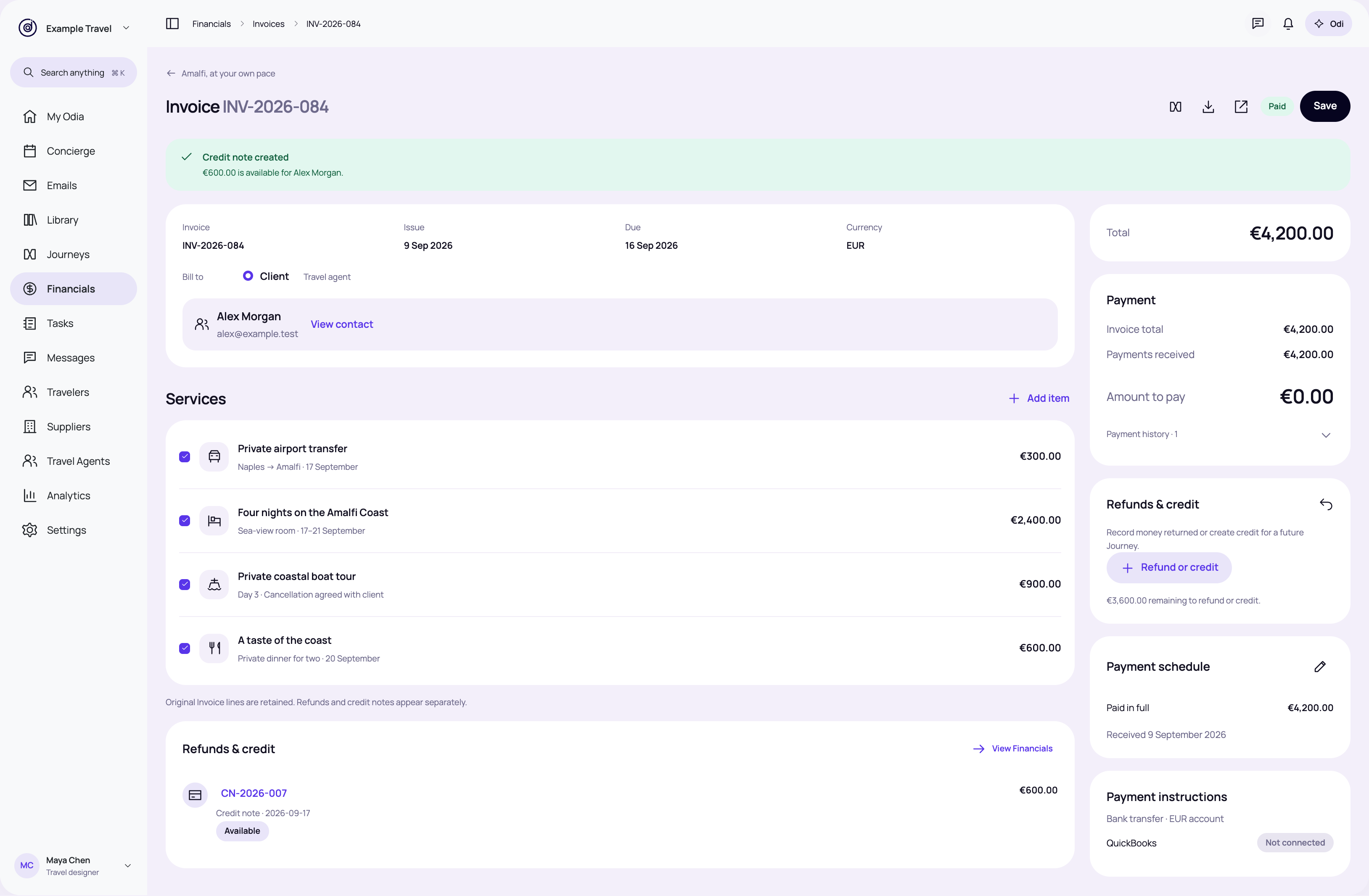
Show the credit note on its source Invoice with a direct route to the contact.
Review this state → · High-resolution PNG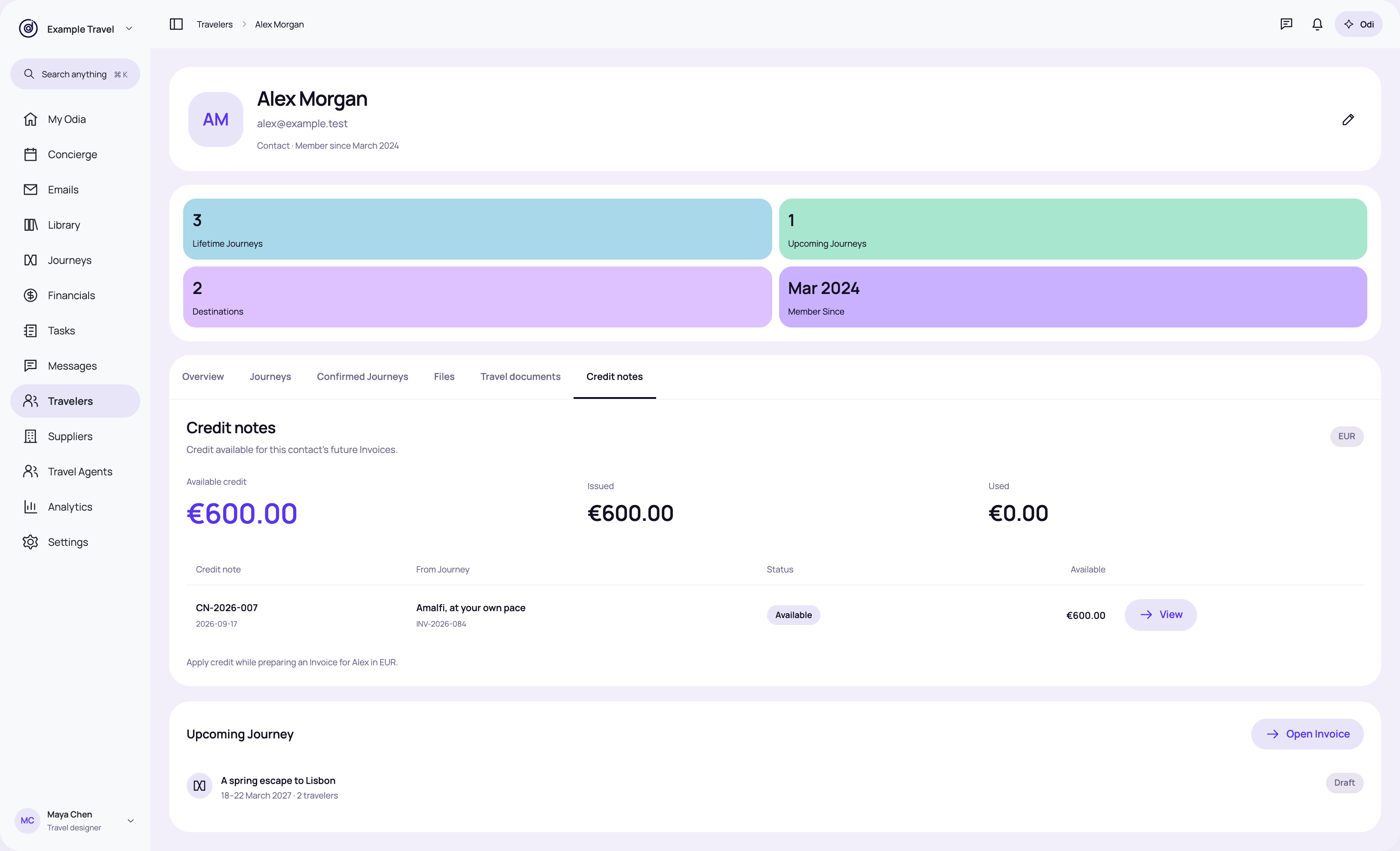
Add a Credit notes tab to the existing contact header, metrics and tab set.
Review this state → · High-resolution PNG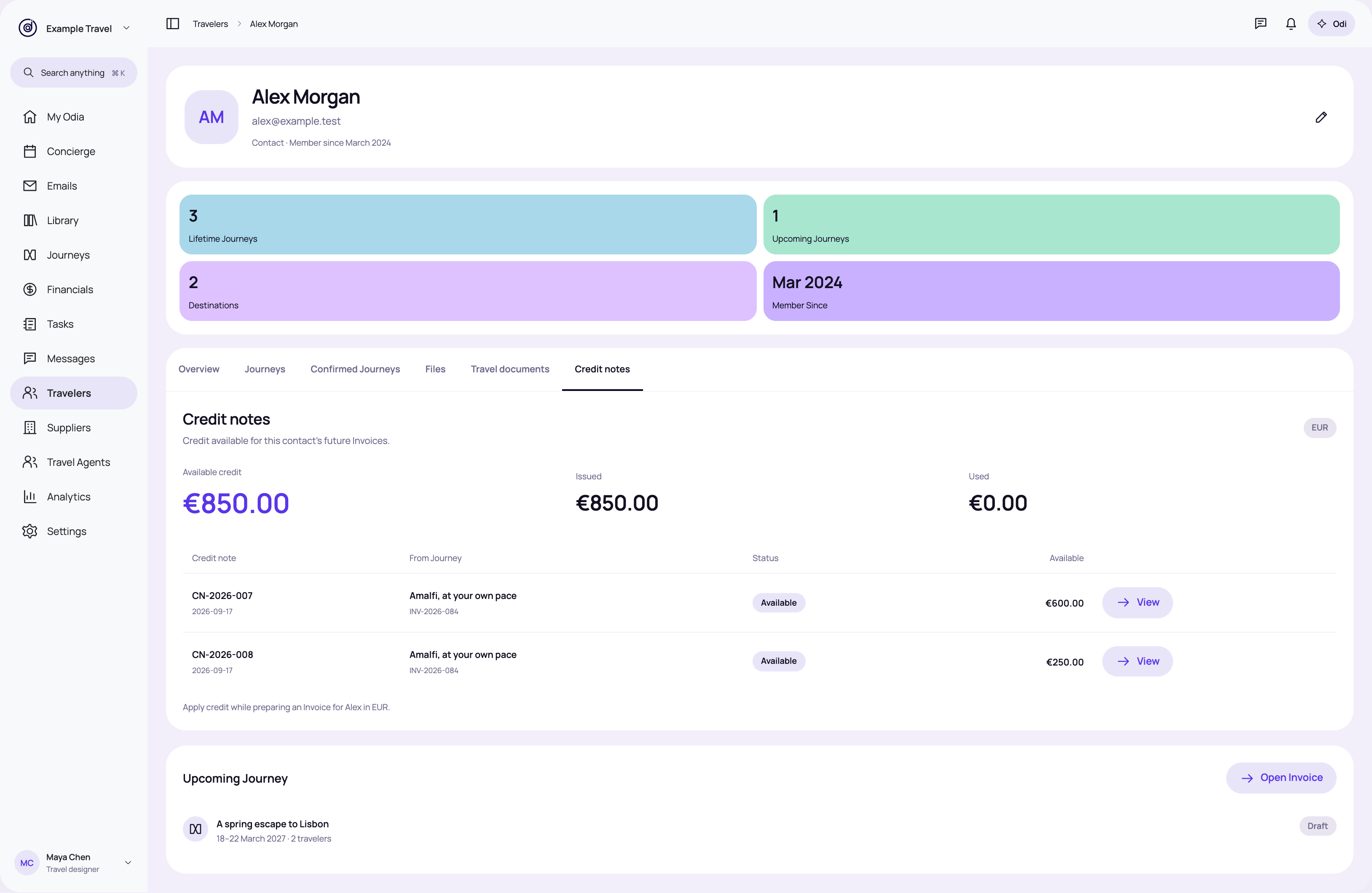
Keep each note and its remaining balance visible while showing the contact total.
Review this state → · High-resolution PNG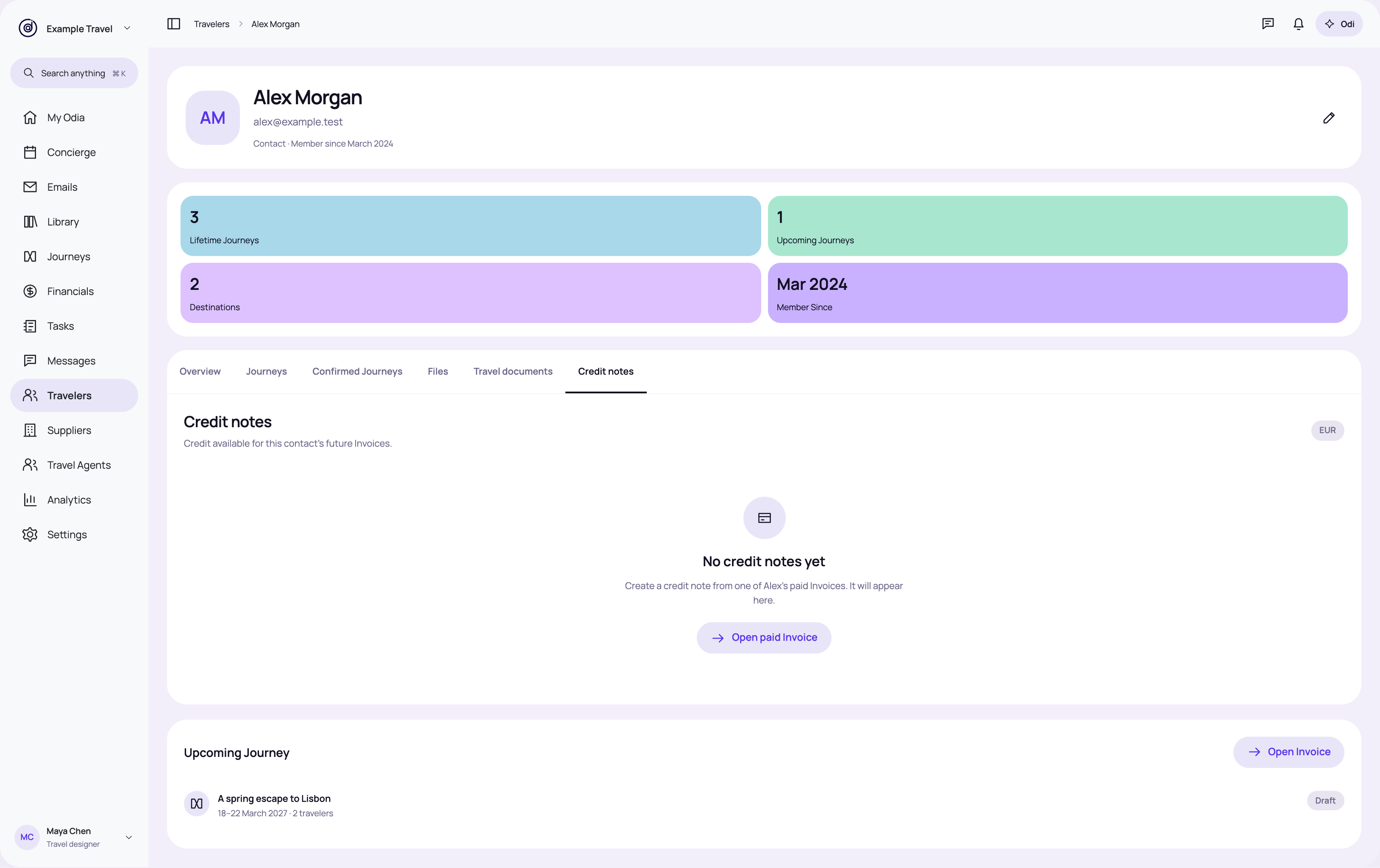
Explain that credit is created from an existing paid Invoice. Offer that route.
Review this state → · High-resolution PNG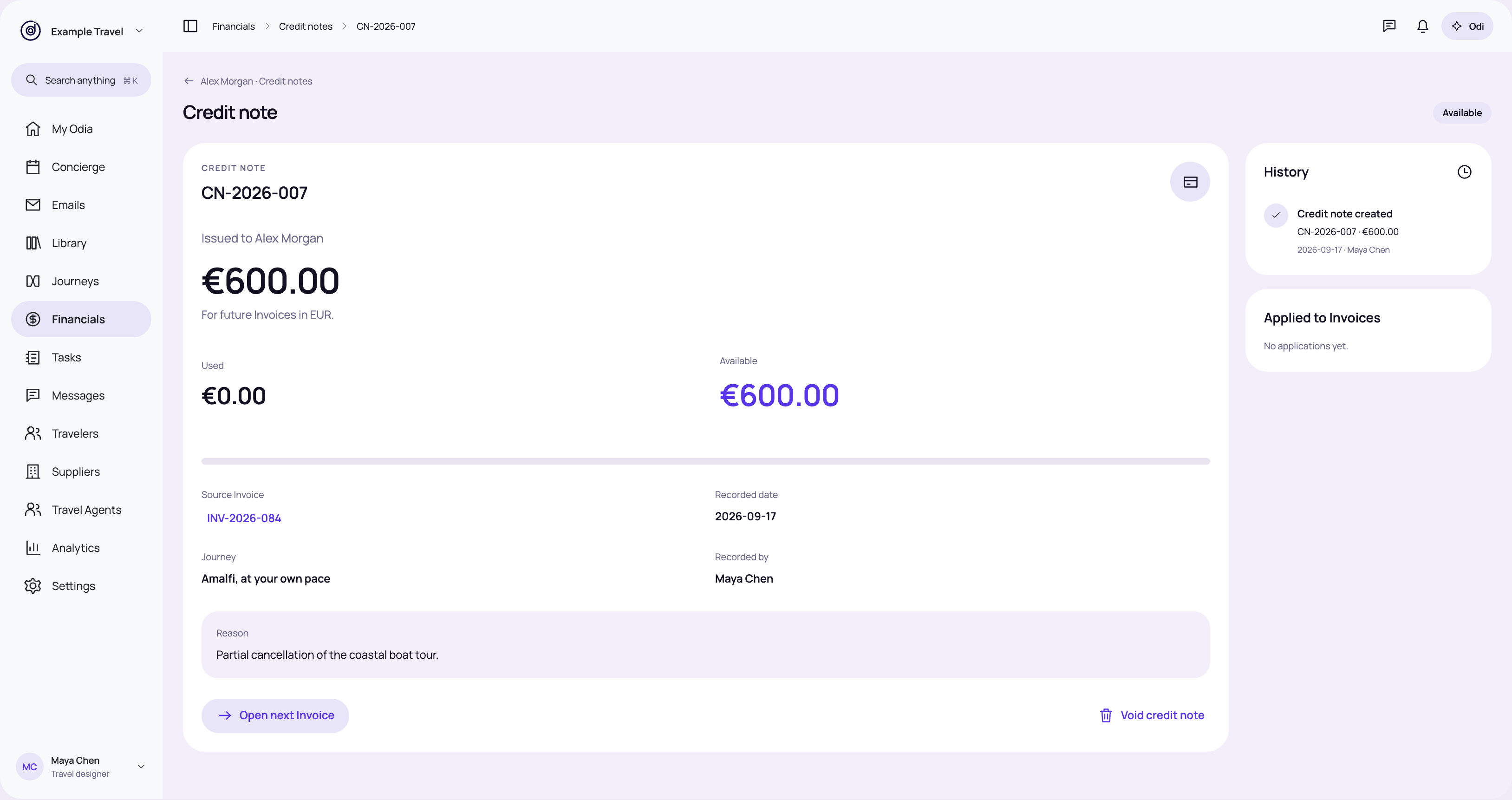
Show issued, used and available values, with the source Invoice and reason.
Review this state → · High-resolution PNG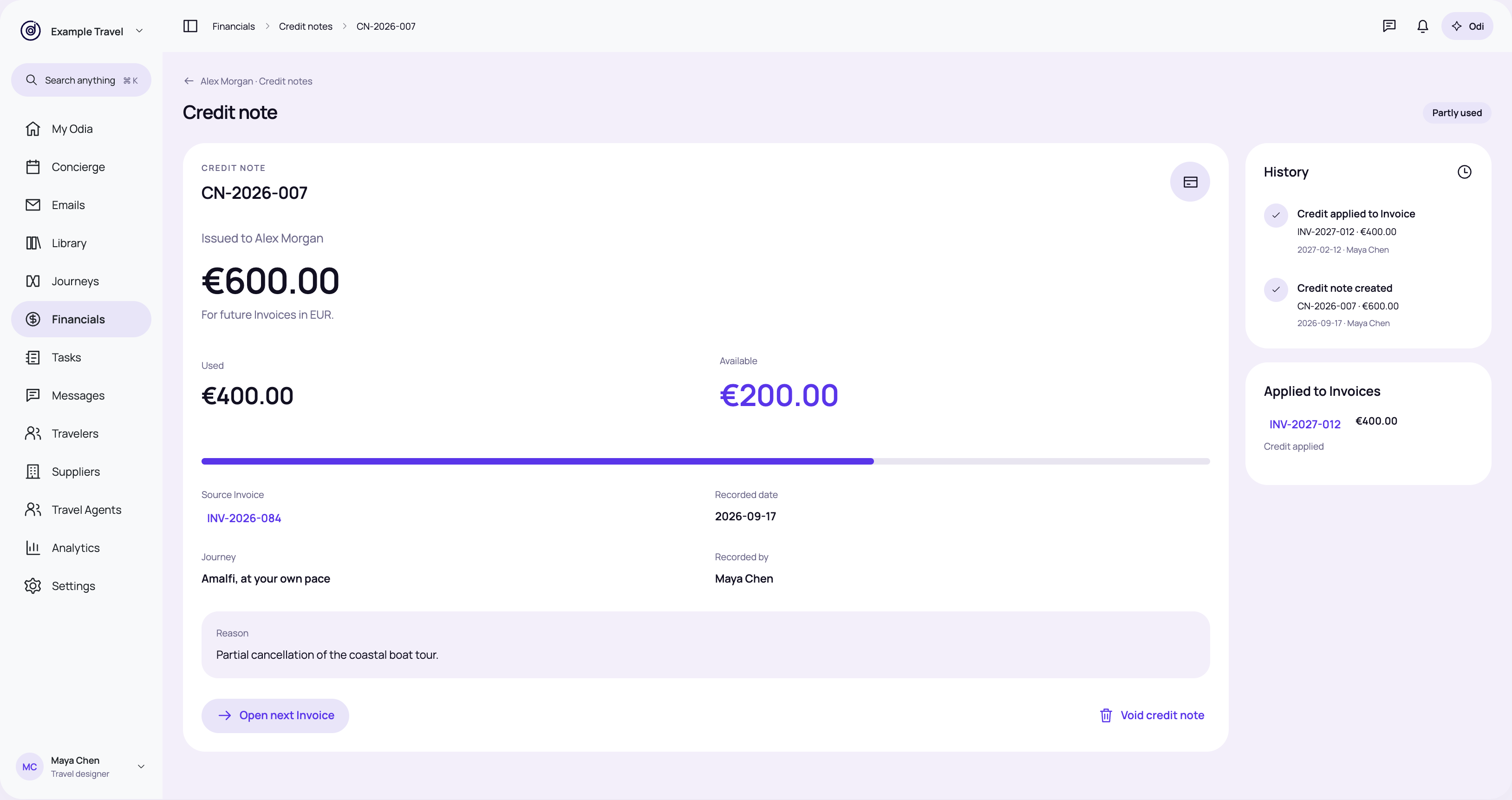
Show a €400 application and the €200 remaining from the same €600 note.
Review this state → · High-resolution PNG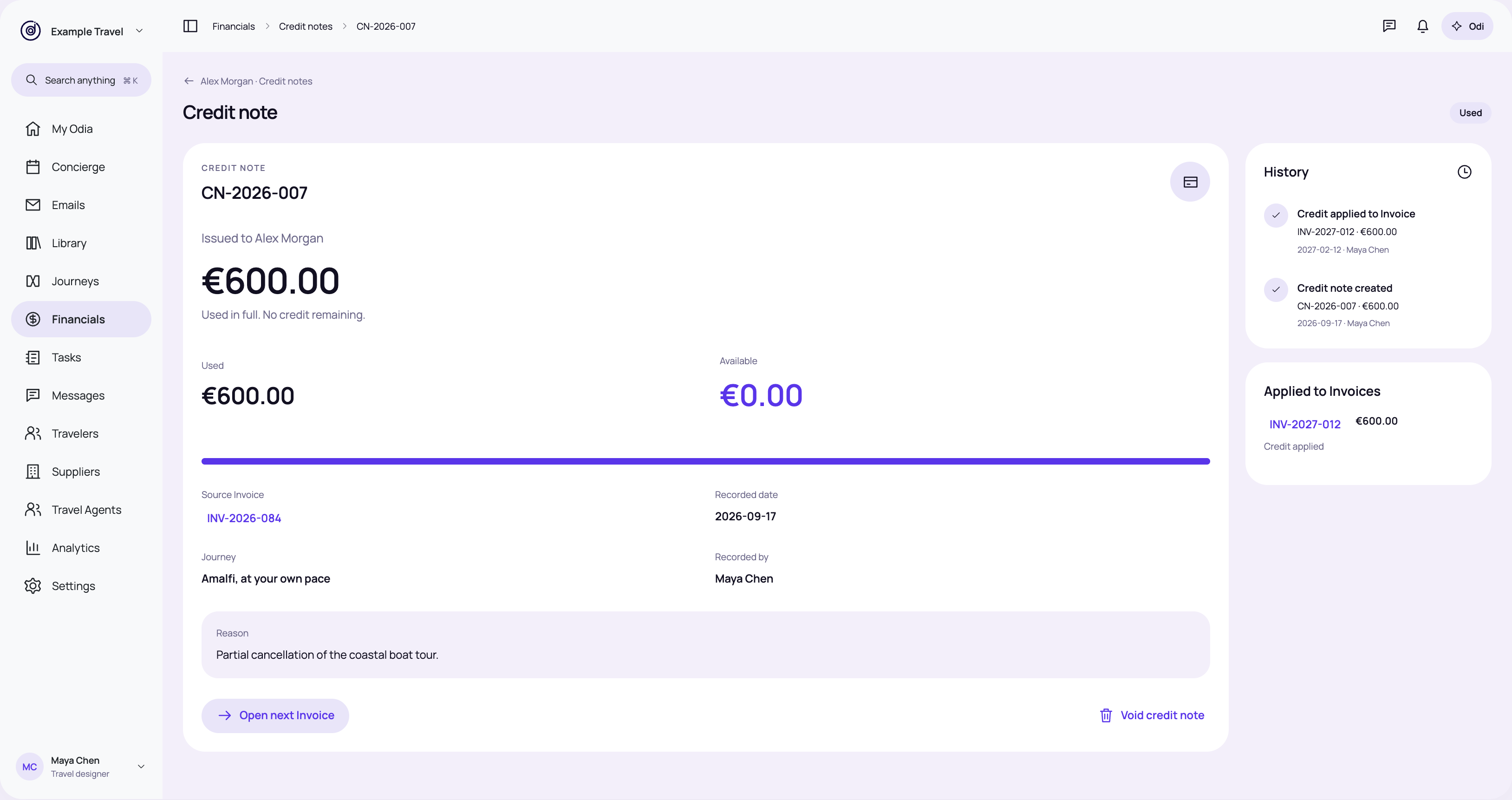
Keep the note in history after its full amount has been applied.
Review this state → · High-resolution PNG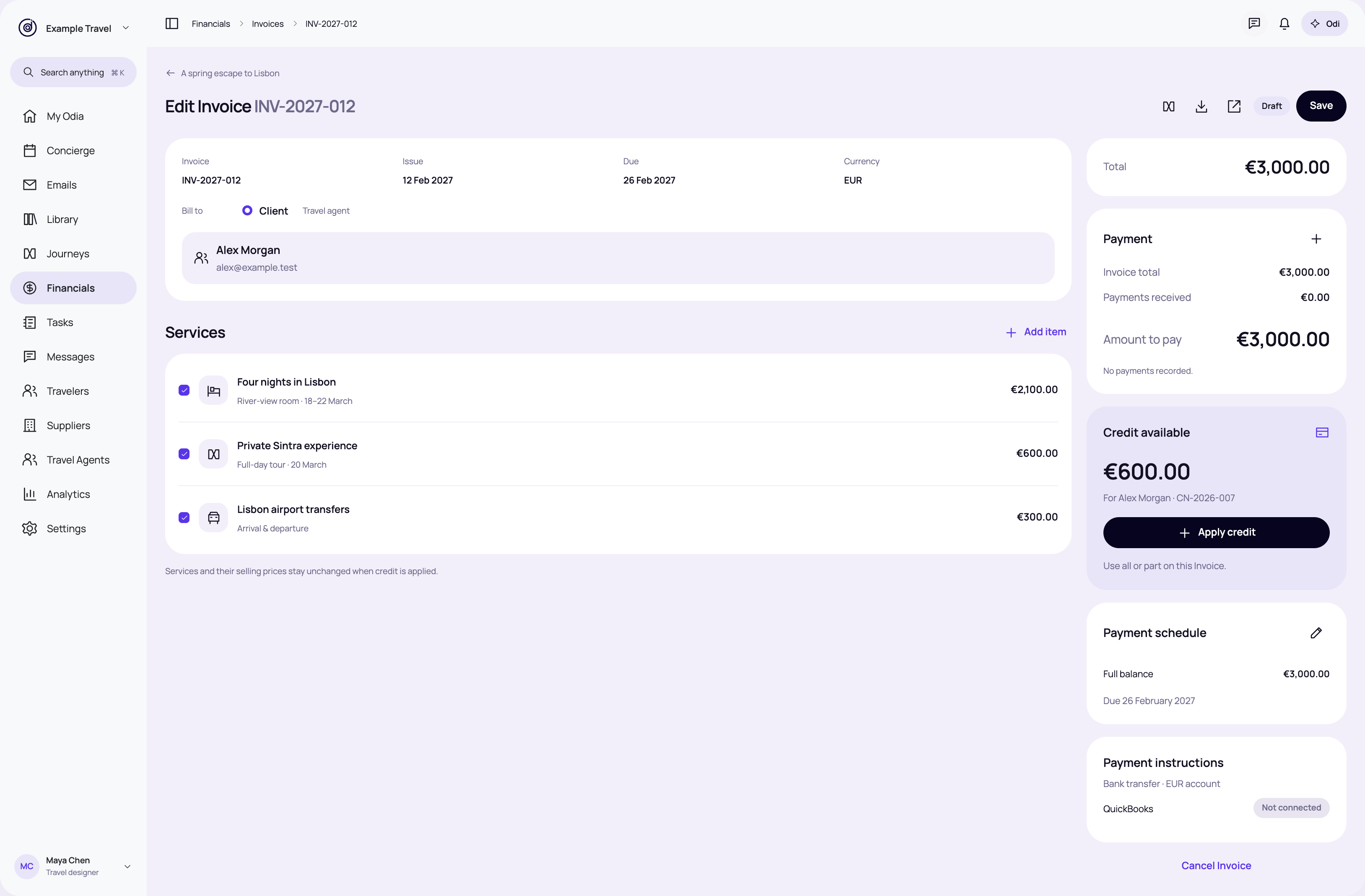
Offer available credit in the right rail of the current Invoice editor. Applying it is an explicit choice.
Review this state → · High-resolution PNG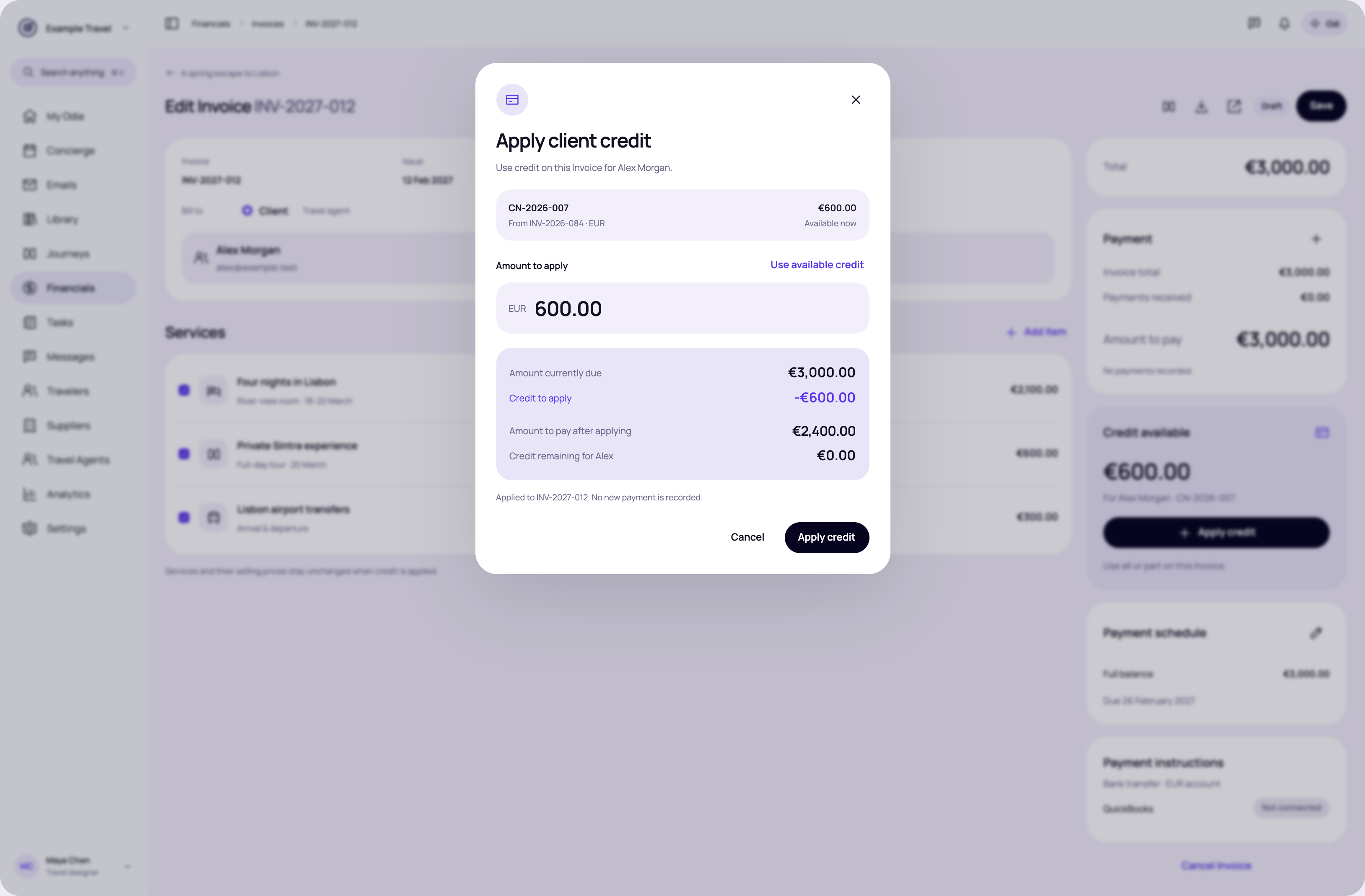
Show the credit source and prefill the smaller of available credit and amount due.
Review this state → · High-resolution PNG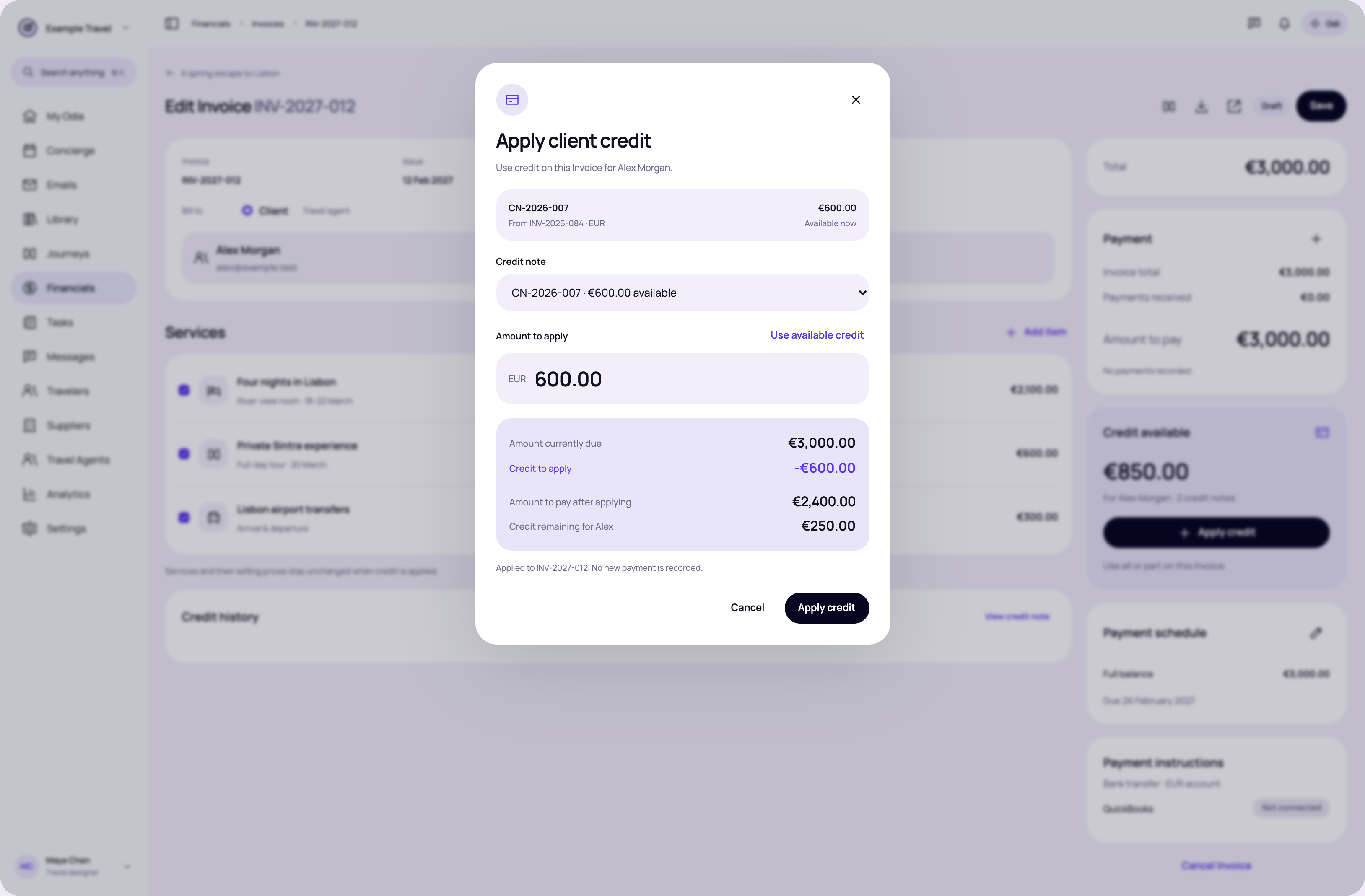
Choose which available note to apply. Each note keeps its own remaining amount.
Review this state → · High-resolution PNG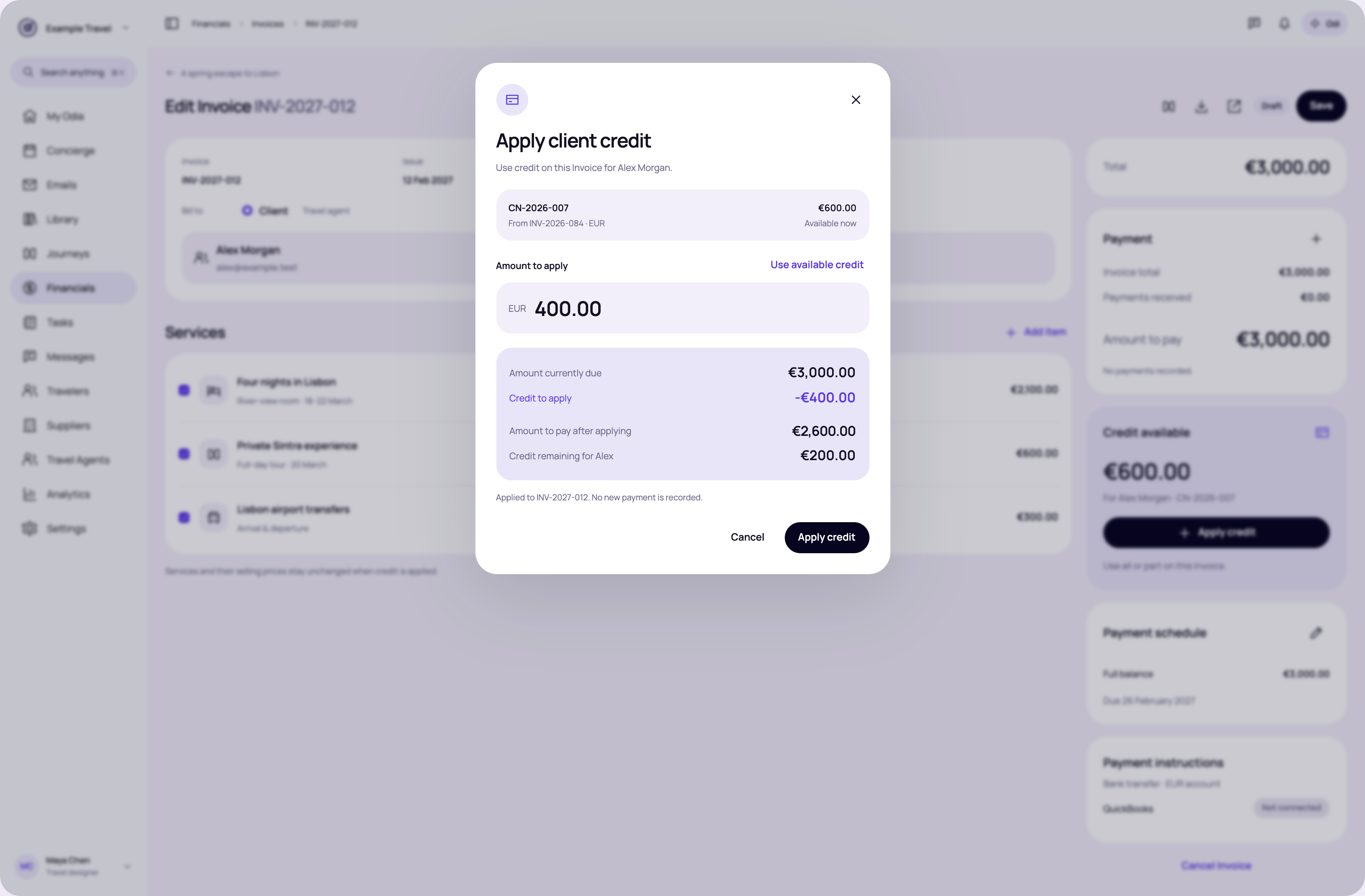
Change the amount to €400 and preview both the Invoice balance and remaining credit.
Review this state → · High-resolution PNG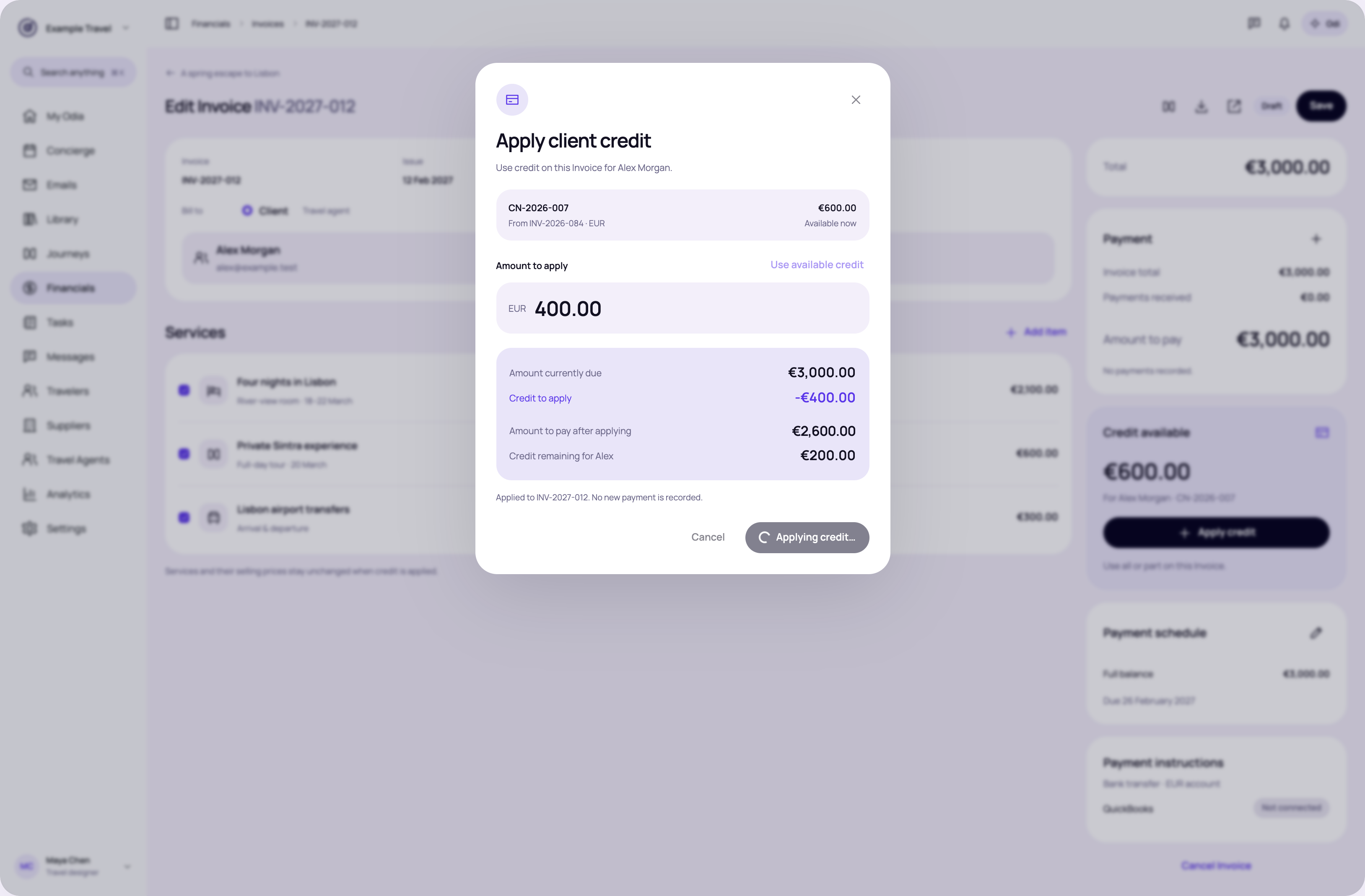
Show Applying credit… and keep the dialog open until success.
Review this state → · High-resolution PNG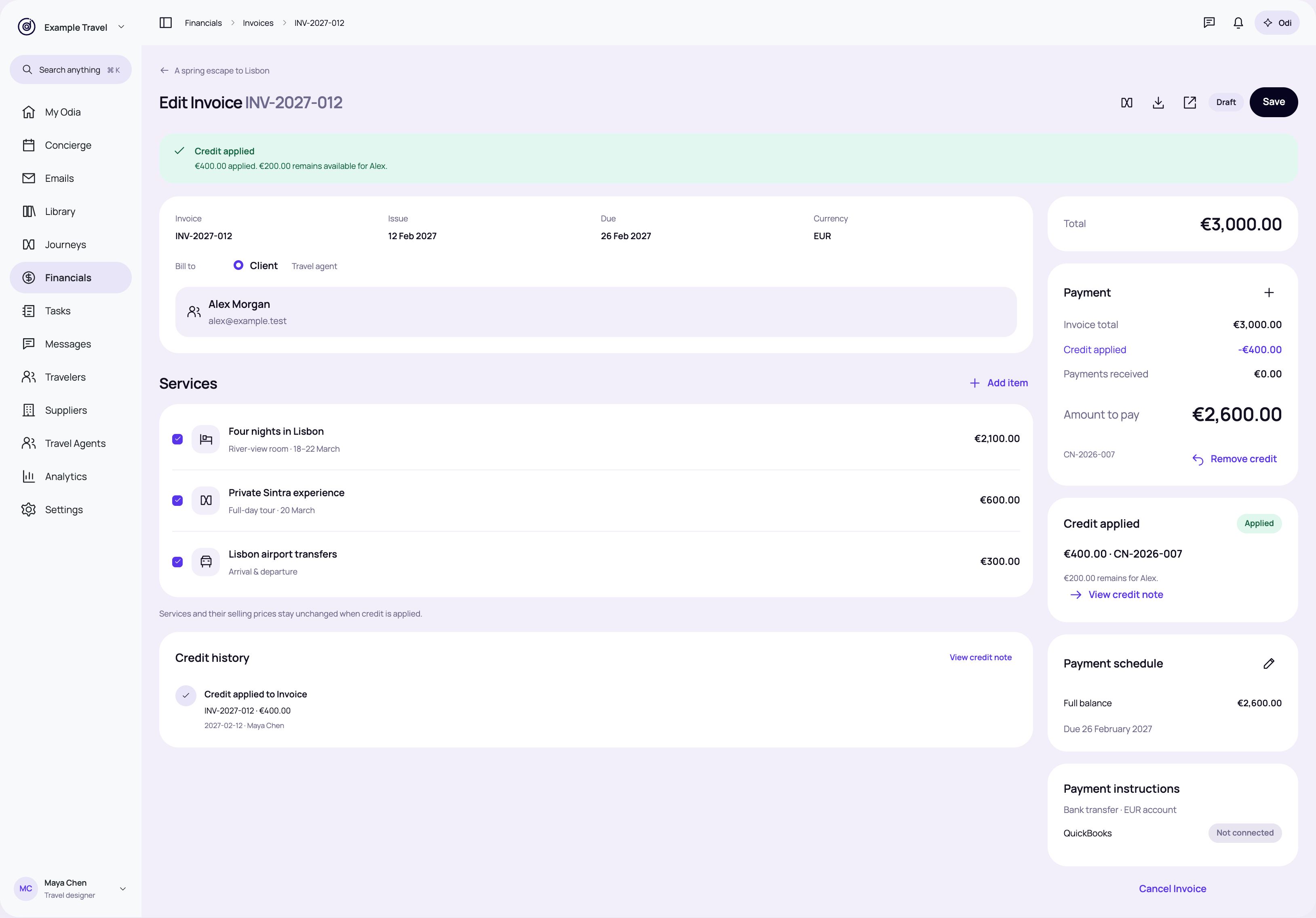
Show Invoice total, credit applied and amount to pay separately.
Review this state → · High-resolution PNG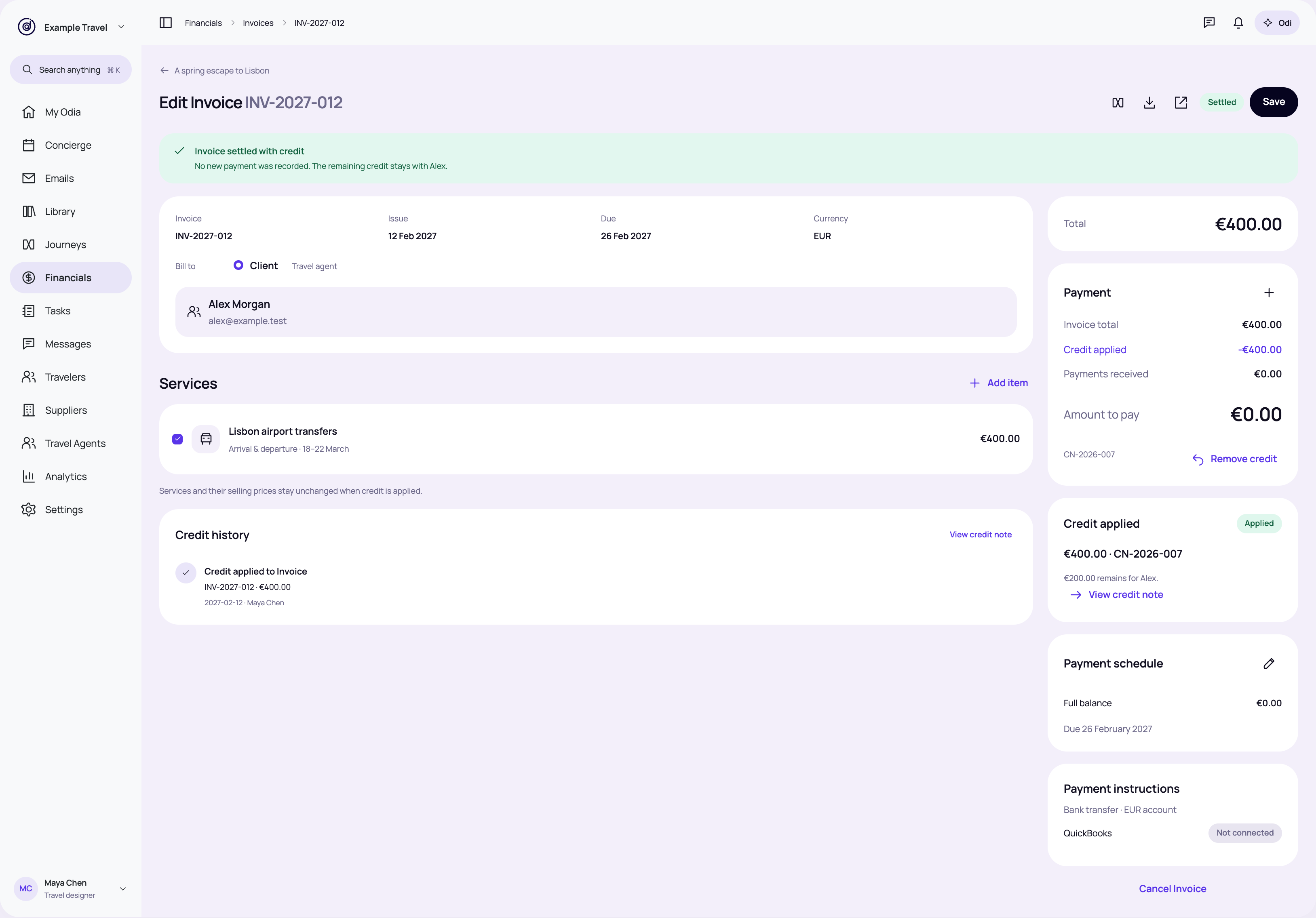
A €400 Invoice is settled by €400 credit and leaves €200 available.
Review this state → · High-resolution PNG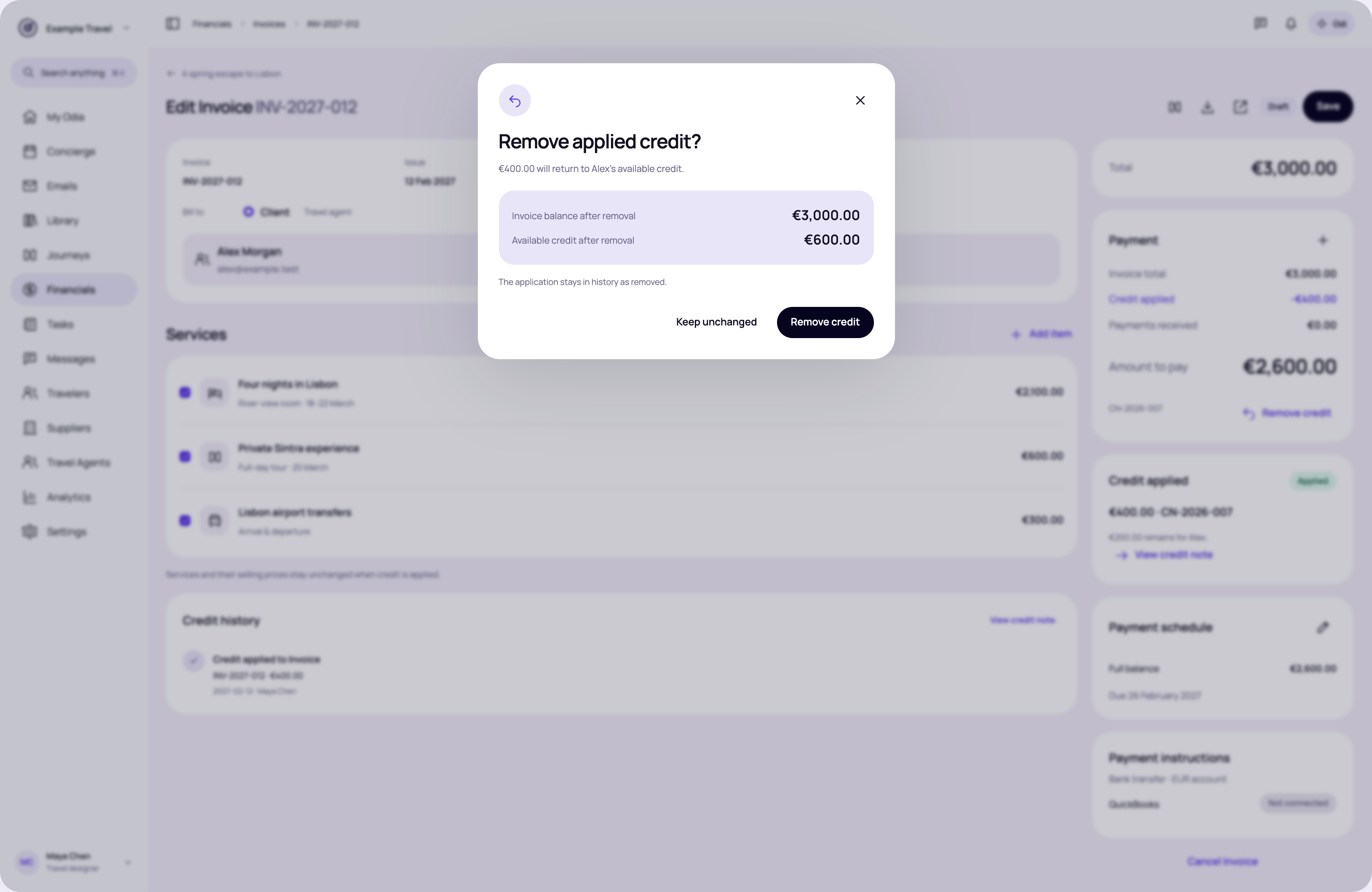
Confirm that removing the application restores credit and increases the Invoice balance.
Review this state → · High-resolution PNG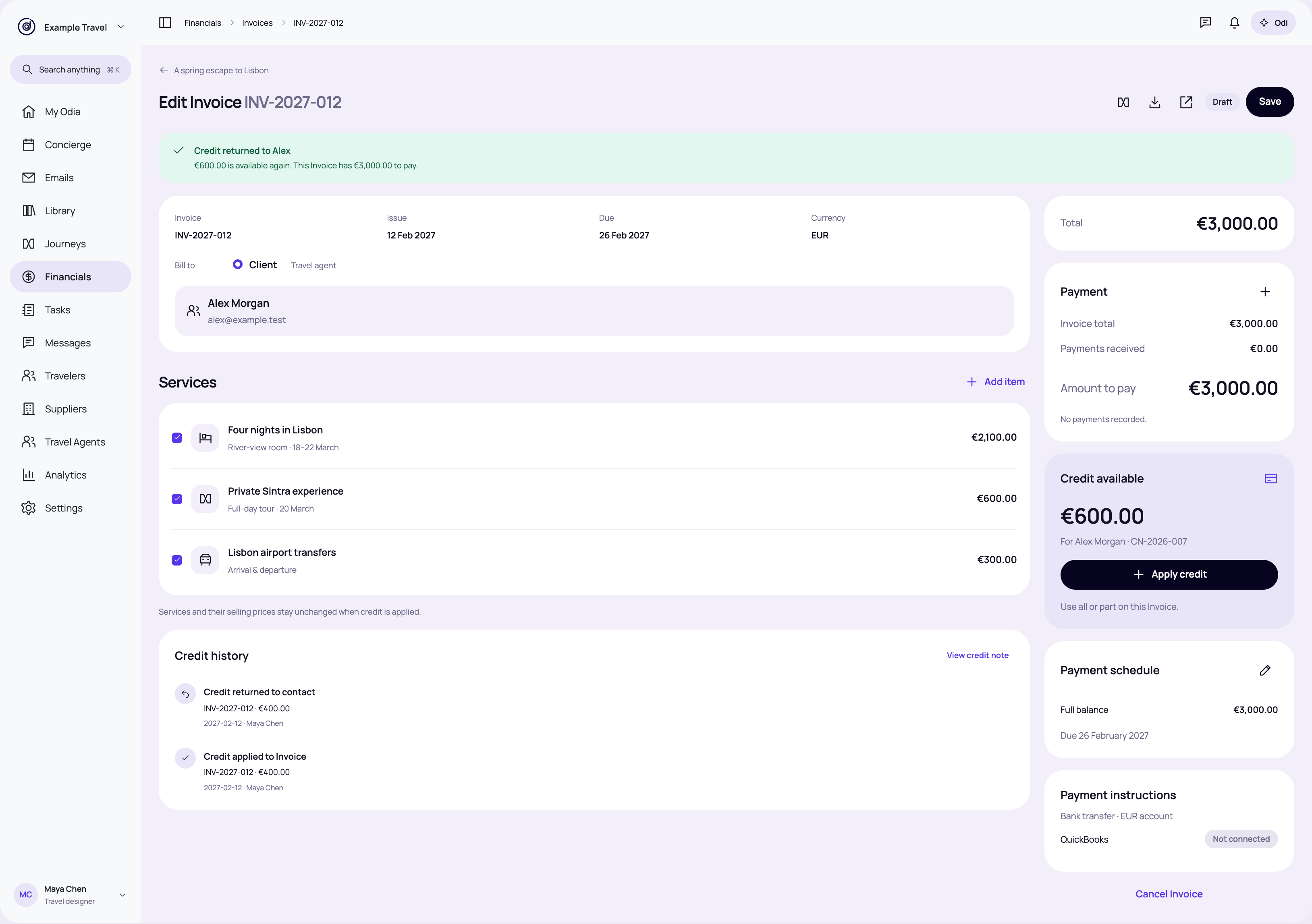
Show the restored €600 credit and the Invoice balance returning to €3,000.
Review this state → · High-resolution PNG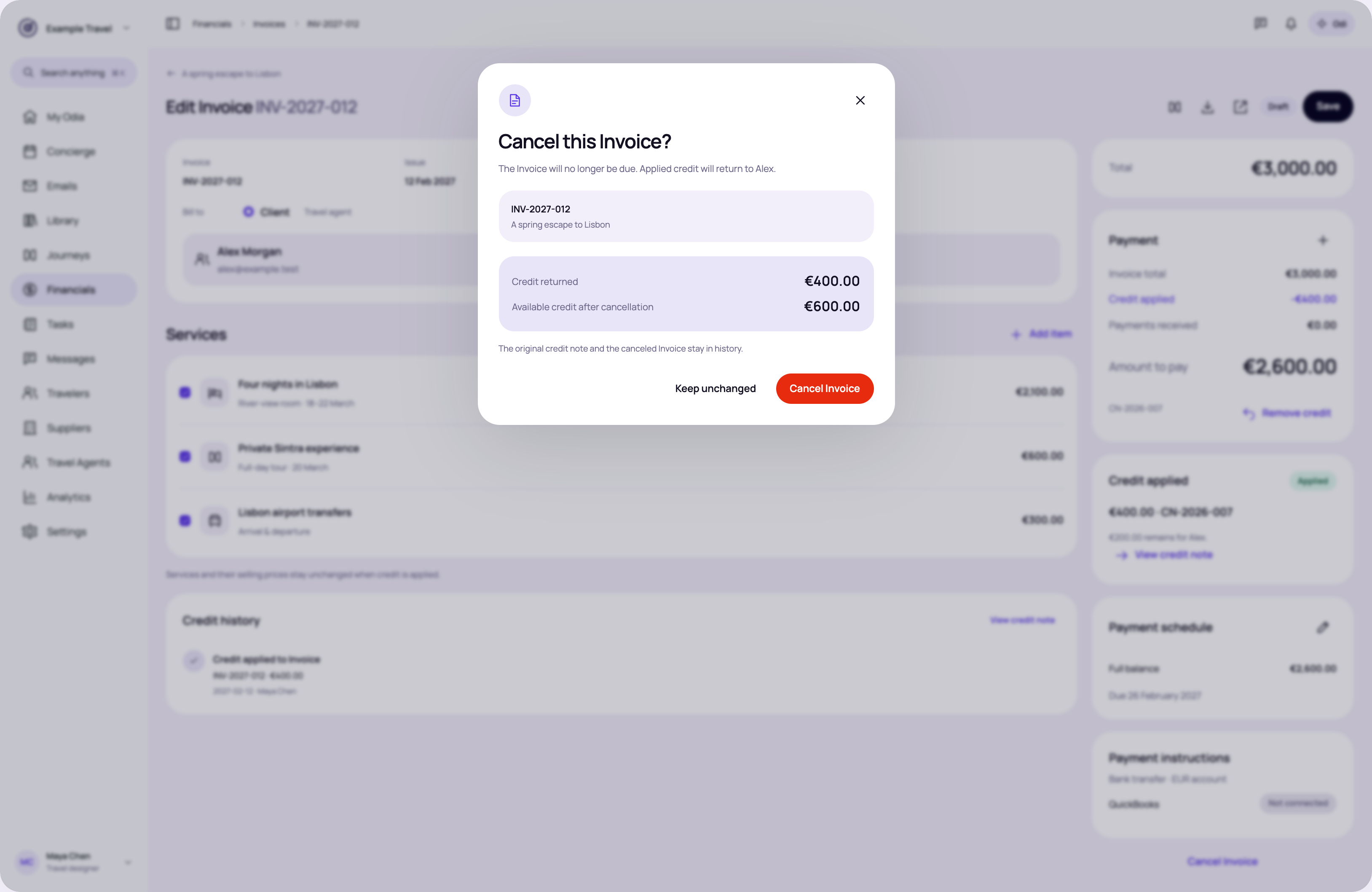
Confirm cancellation and return applied credit to the contact.
Review this state → · High-resolution PNG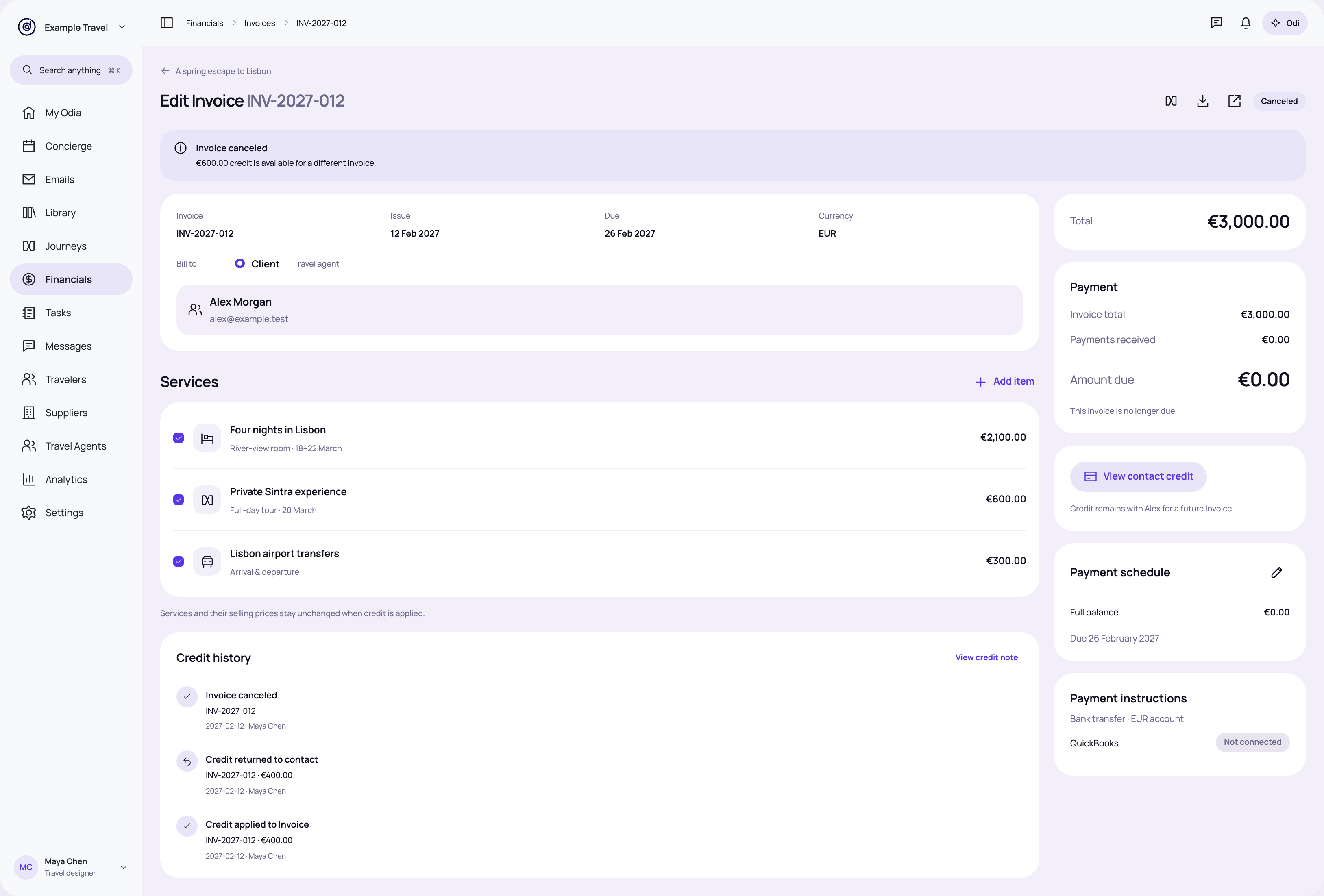
Keep the canceled Invoice and its reversed credit application in history.
Review this state → · High-resolution PNG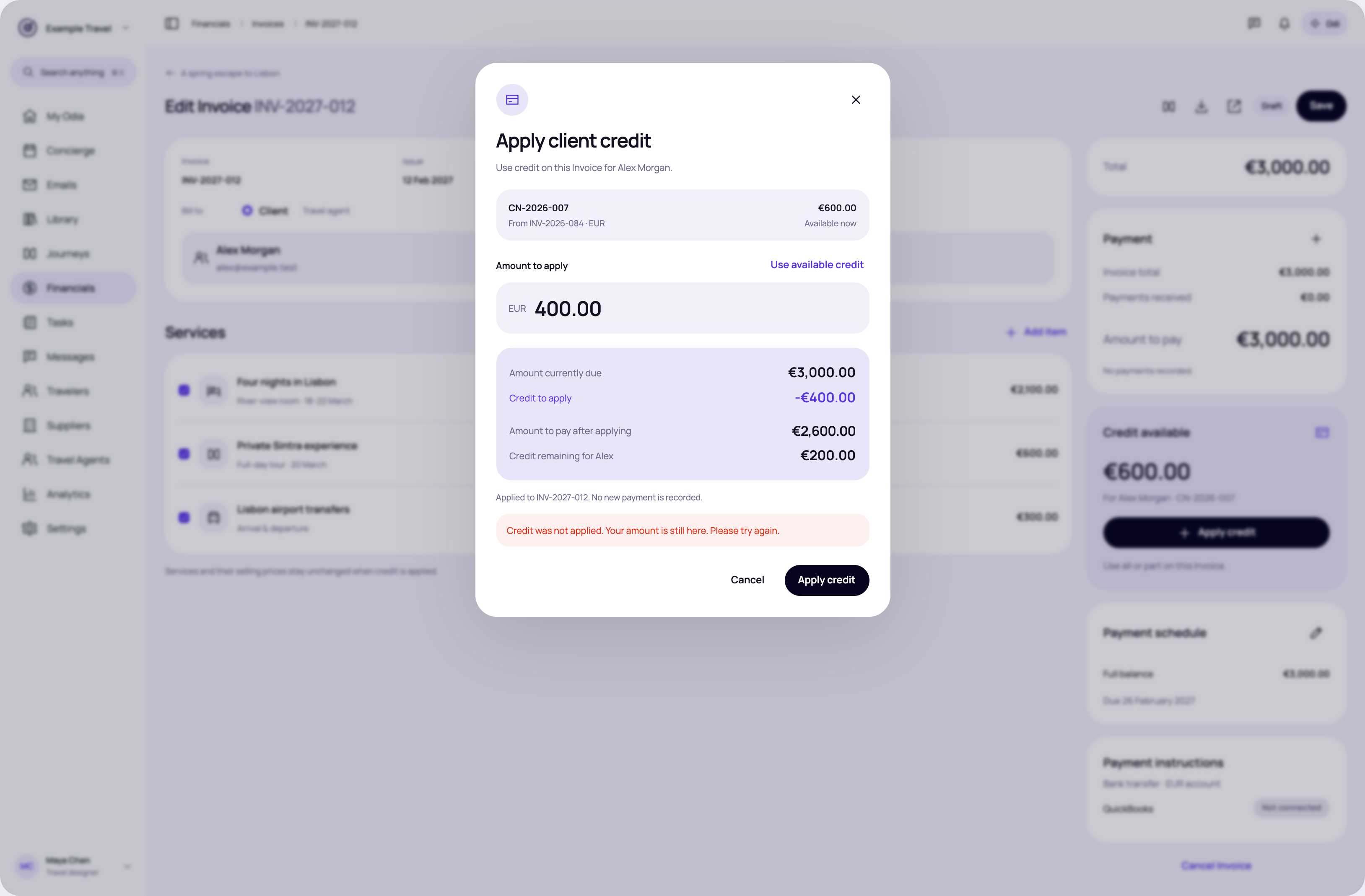
Keep the proposed amount and explain that nothing was applied.
Review this state → · High-resolution PNG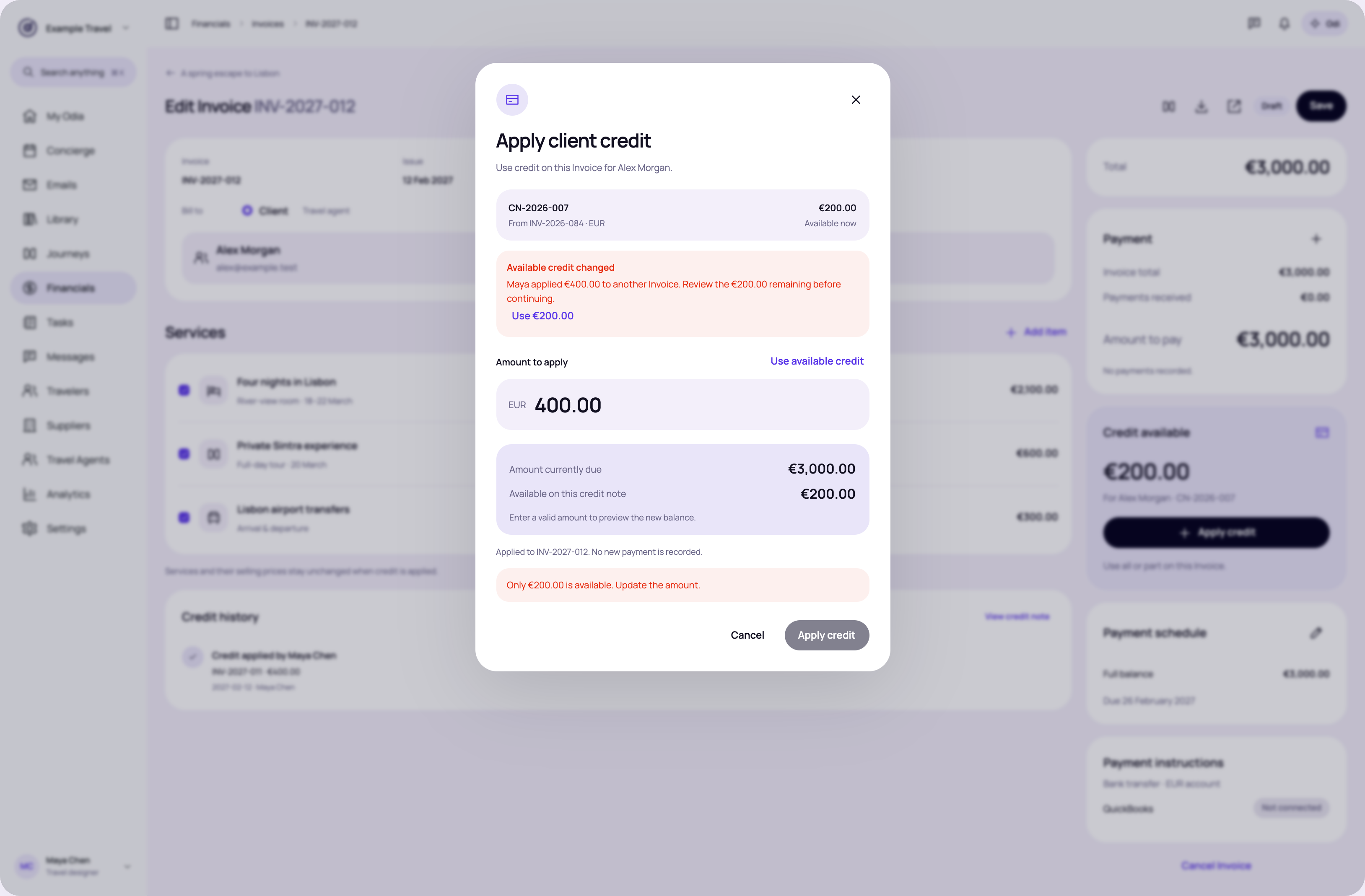
Show the €200 now available after another user applied €400 elsewhere. Require the user to review the new amount.
Review this state → · High-resolution PNG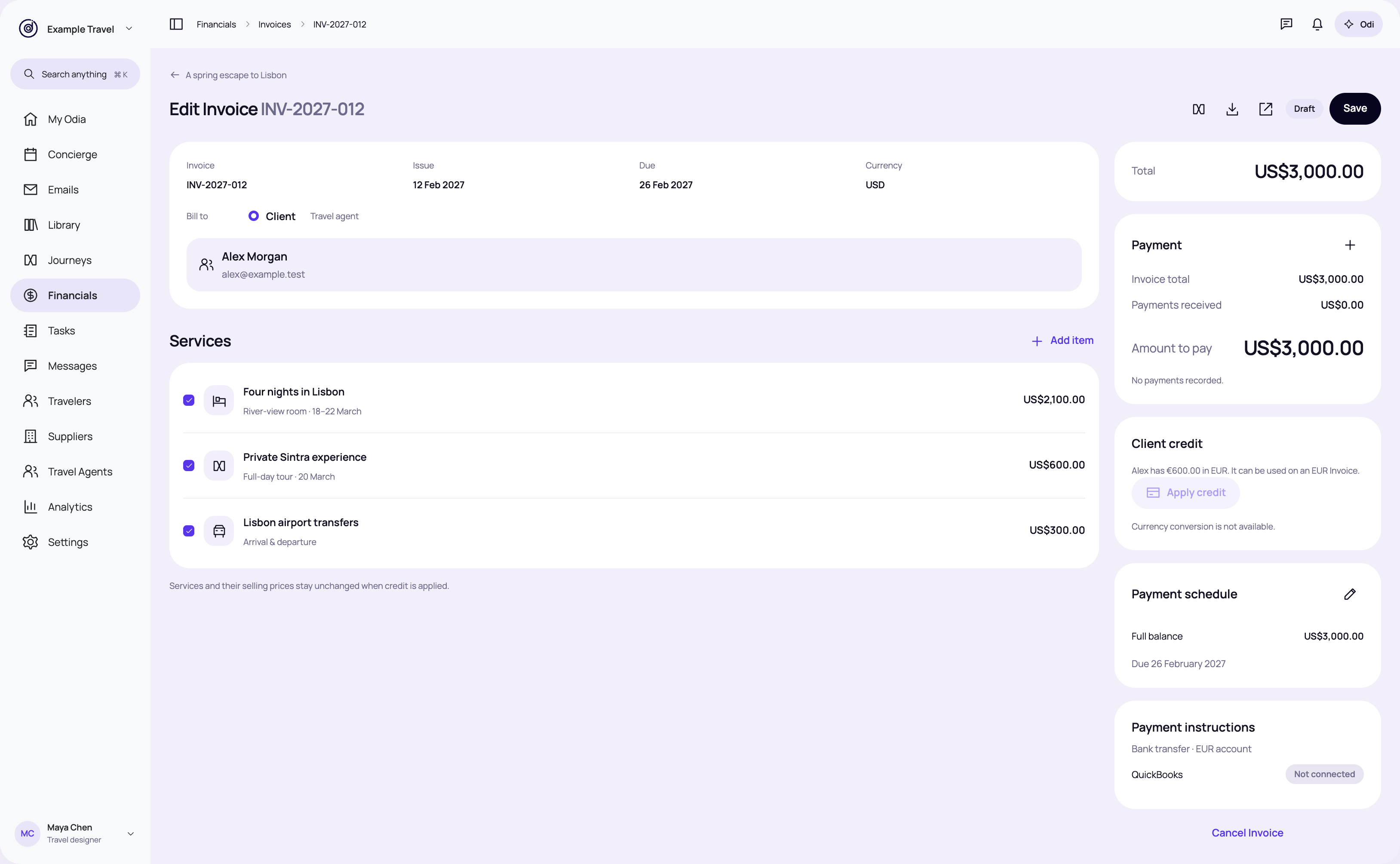
Show that this EUR credit cannot be applied to a USD Invoice.
Review this state → · High-resolution PNG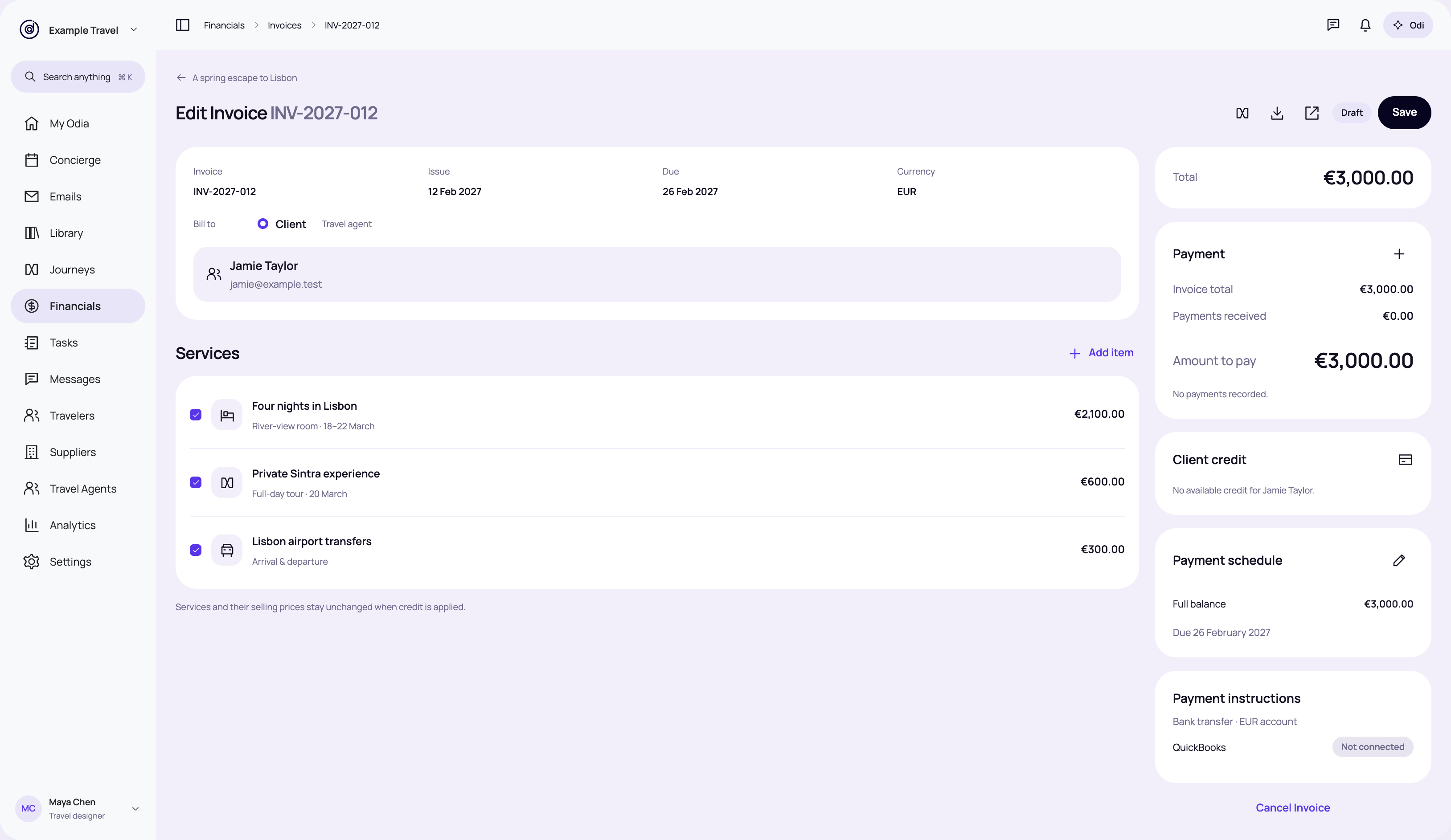
An Invoice billed to Jamie does not offer Alex’s credit.
Review this state → · High-resolution PNG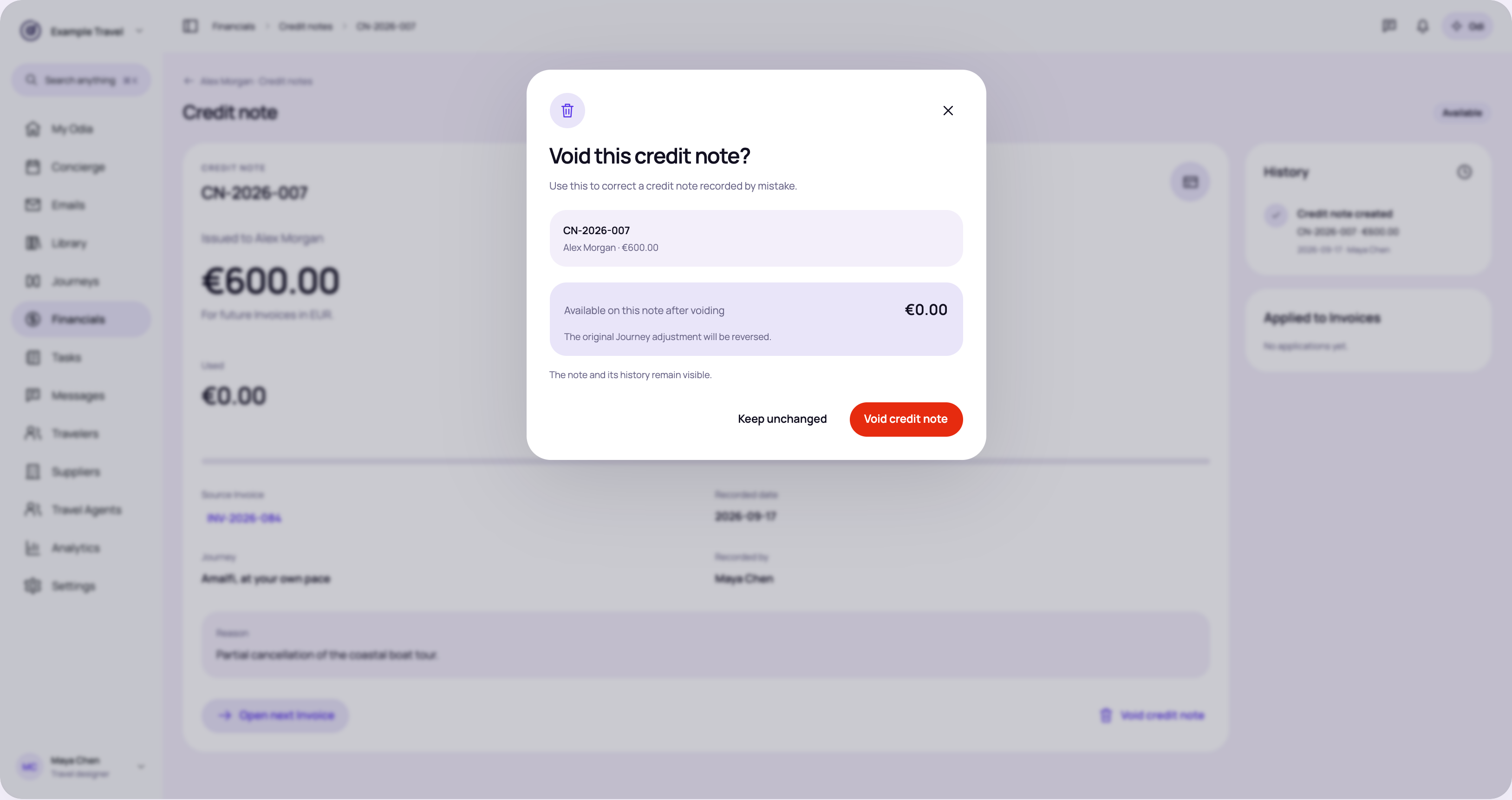
Confirm a recorded mistake. Voiding removes unused credit and reverses its original Journey adjustment.
Review this state → · High-resolution PNG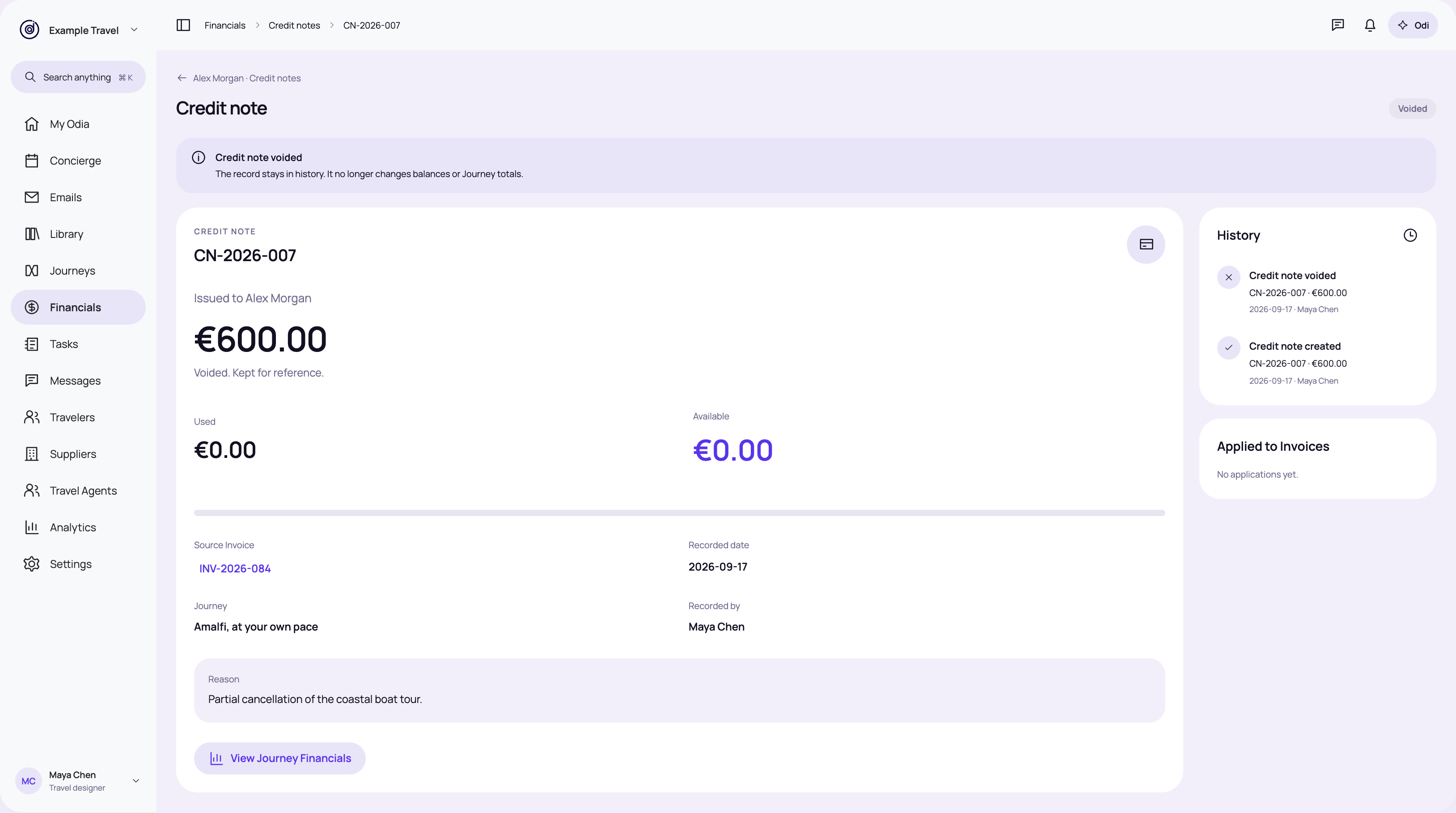
Keep the voided note visible with zero available credit and its history.
Review this state → · High-resolution PNG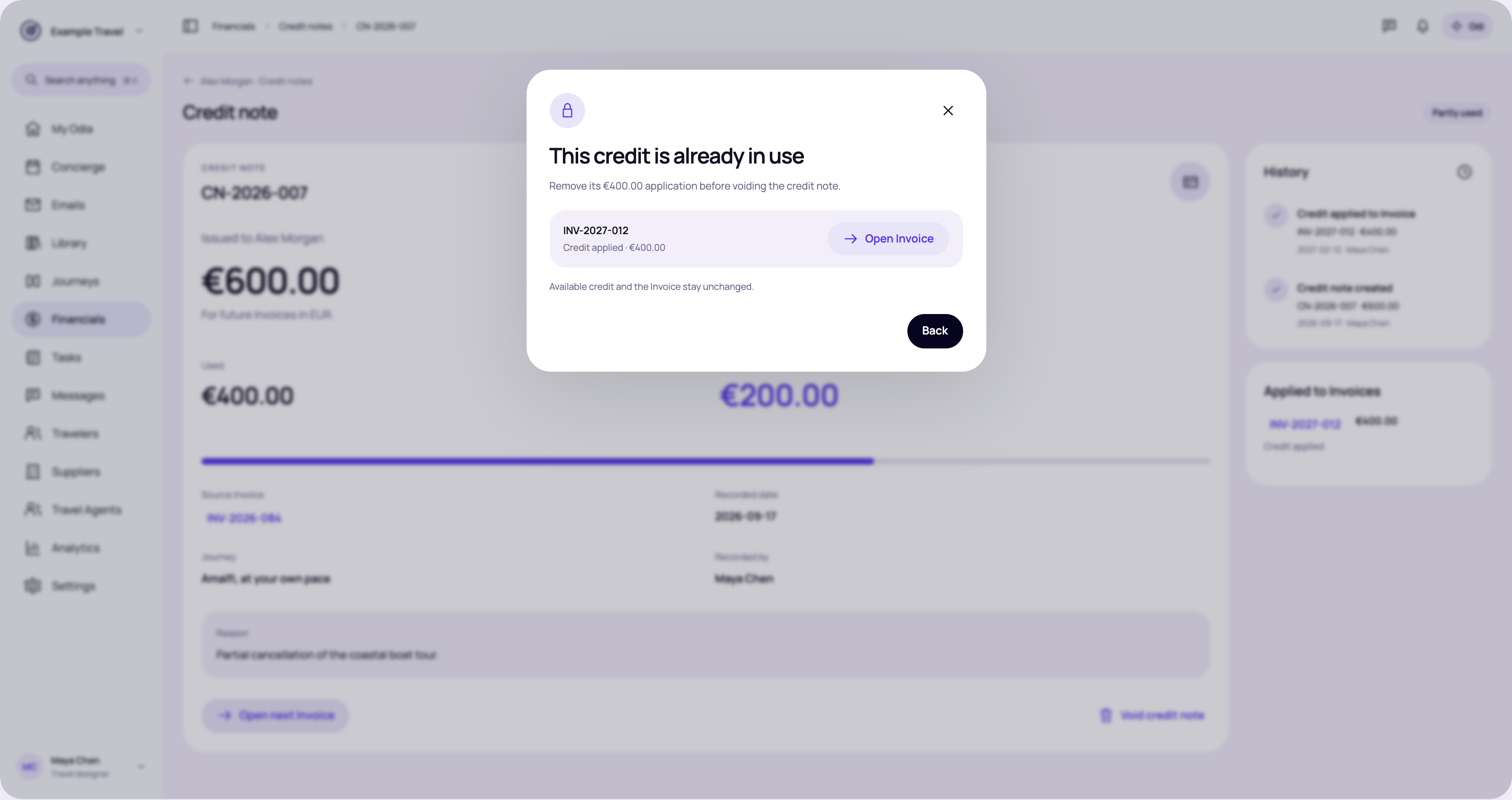
Explain that linked Invoice applications must be removed first. Link to the receiving Invoice.
Review this state → · High-resolution PNG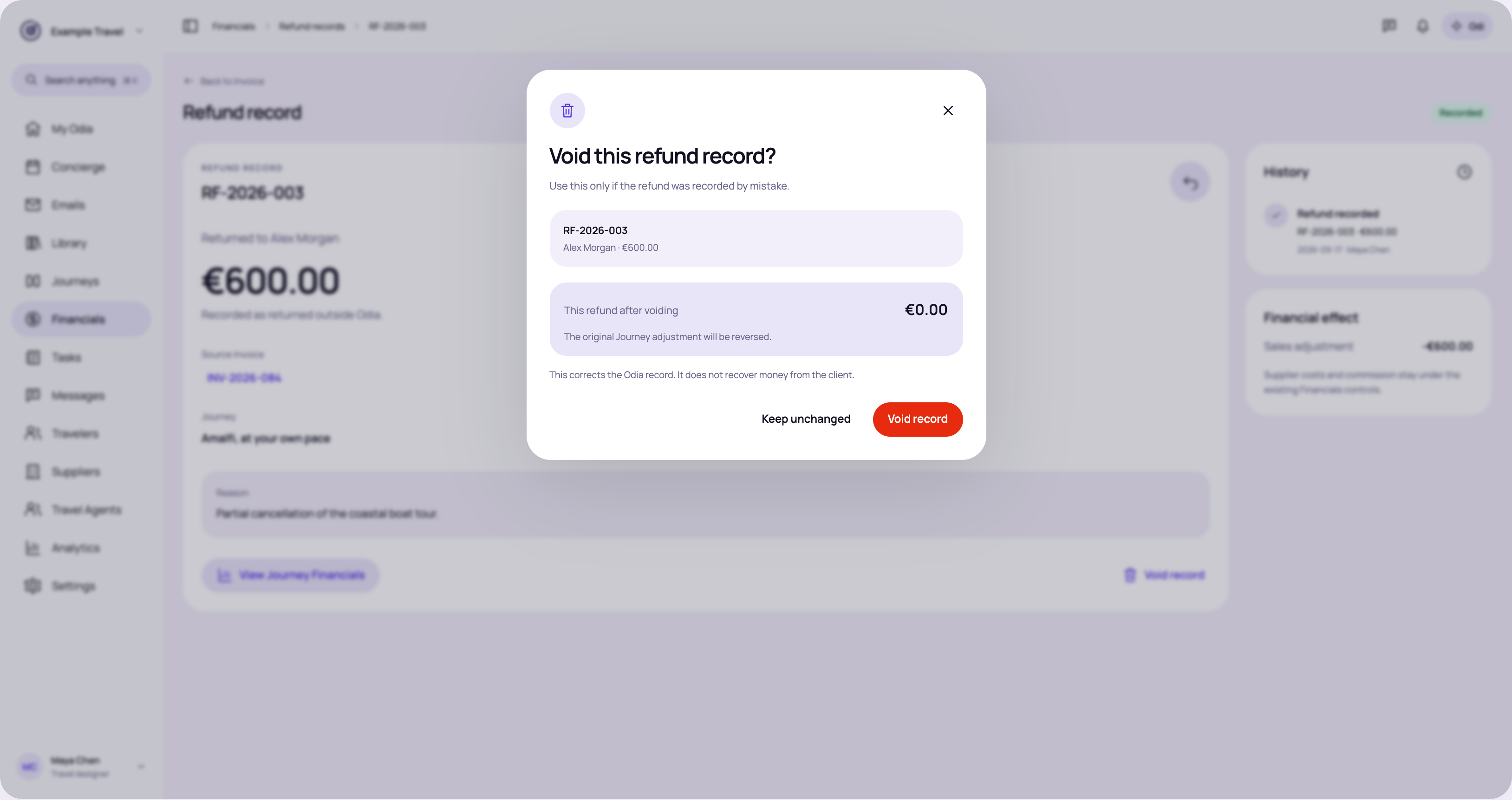
Void an incorrectly recorded refund. This changes the Odia record only.
Review this state → · High-resolution PNG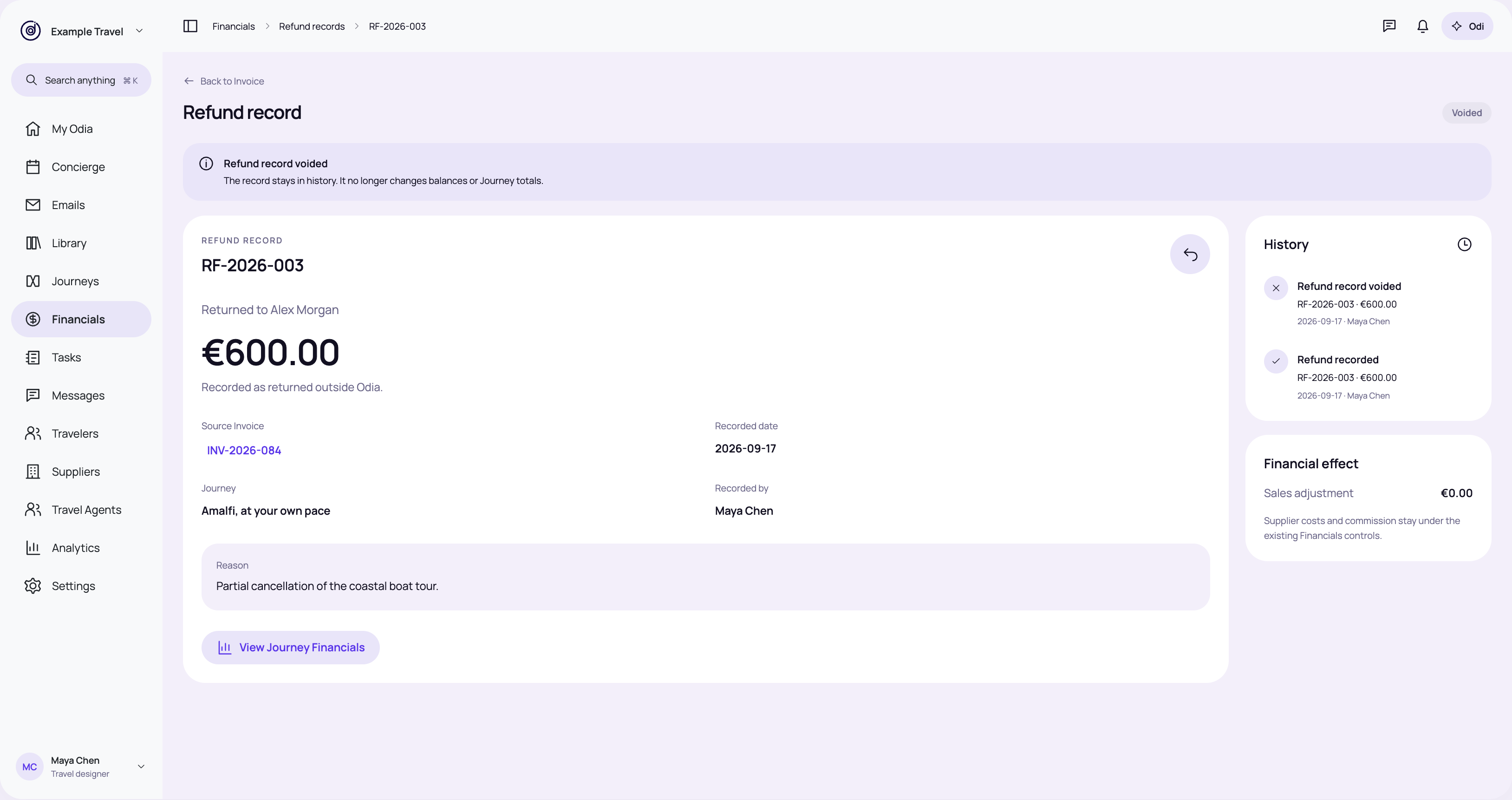
Preserve the record while removing its amount from refund totals and the Journey adjustment.
Review this state → · High-resolution PNG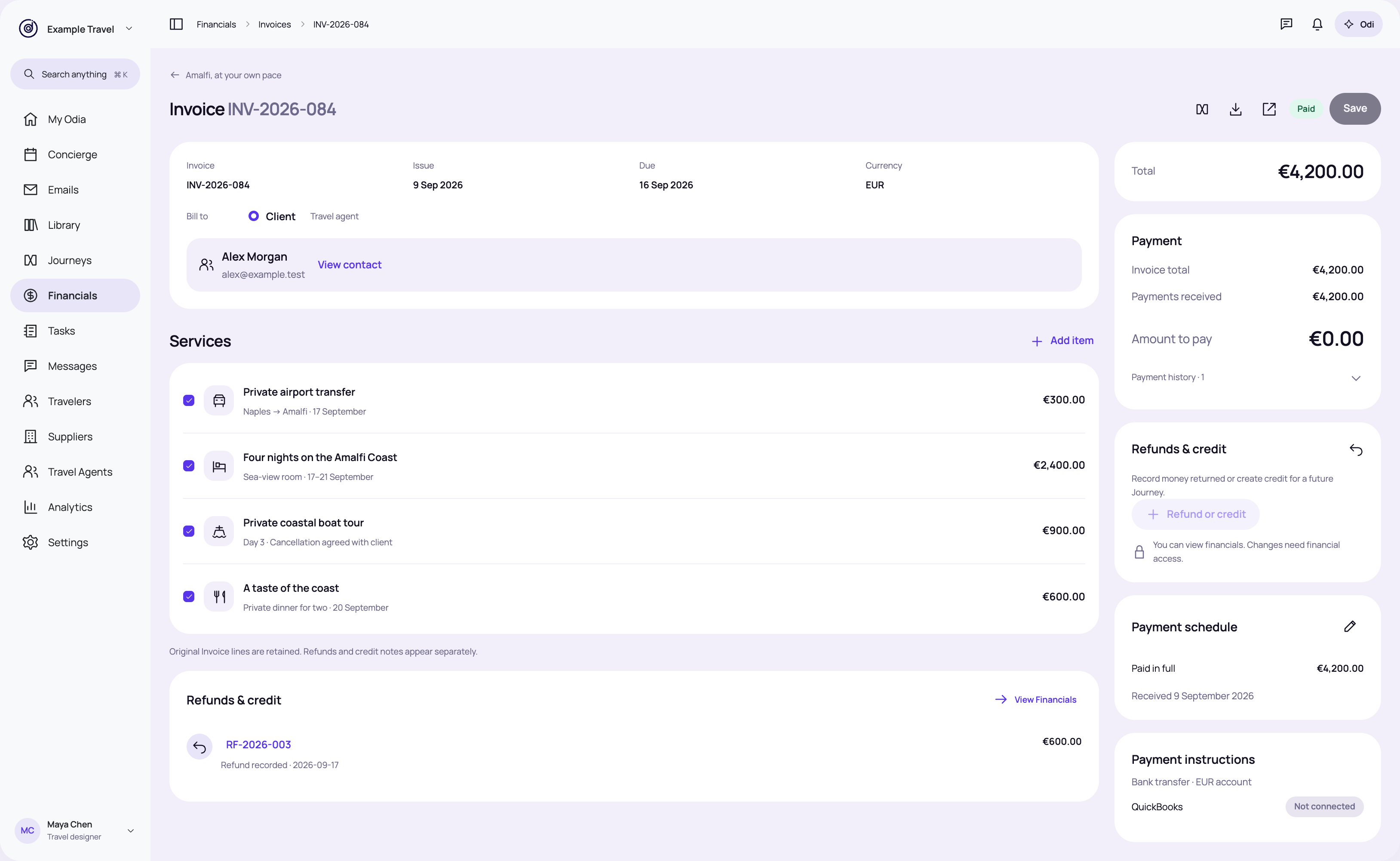
Allow viewing the record while making the permission needed for changes explicit.
Review this state → · High-resolution PNG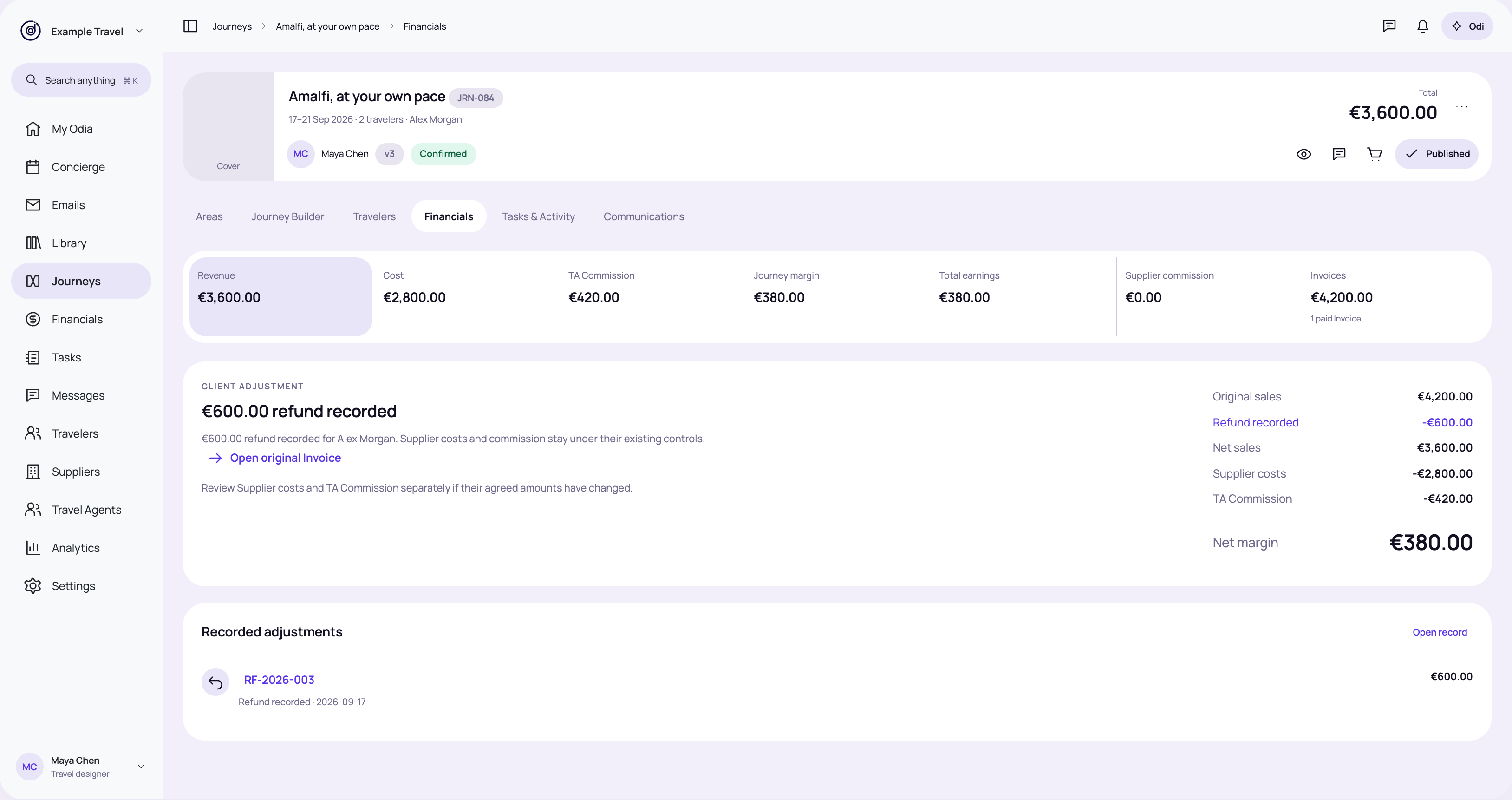
Show the refund separately below original sales. Retain supplier costs and existing commission amounts.
Review this state → · High-resolution PNG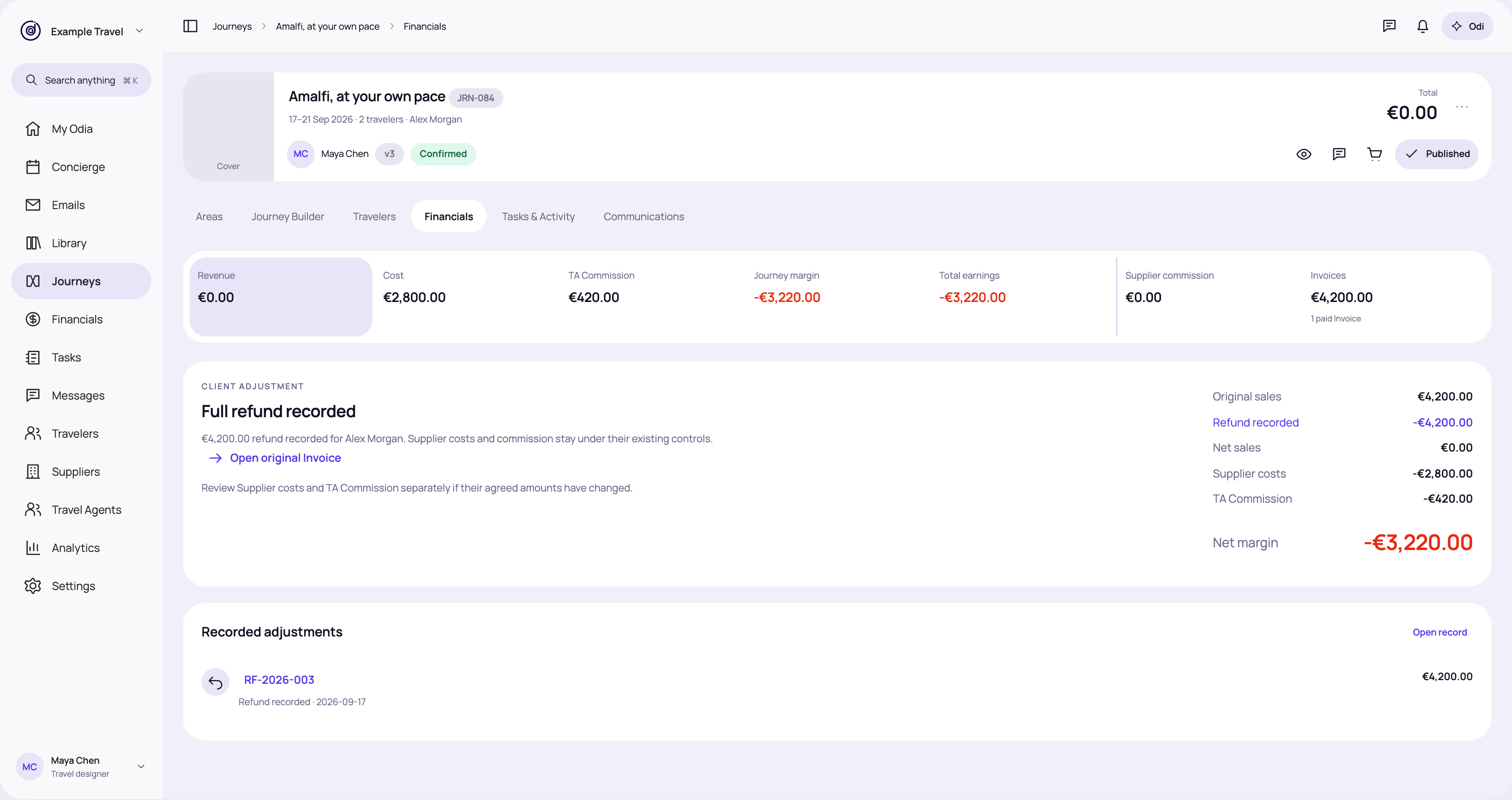
Show zero net sales and the resulting loss while Supplier costs and commission remain.
Review this state → · High-resolution PNG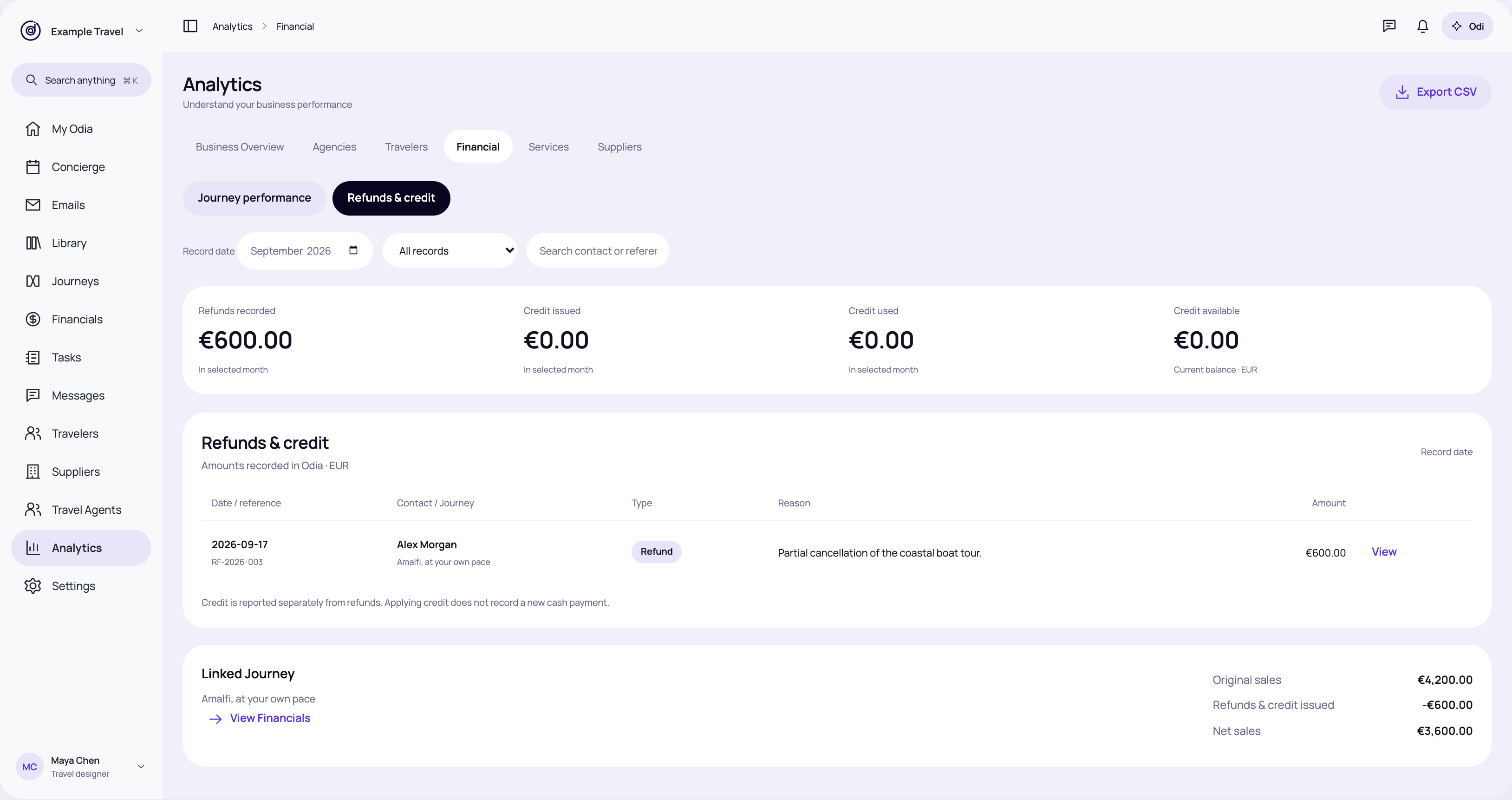
Add a Refunds & credit view inside Financial Analytics, with dated records, reasons and export.
Review this state → · High-resolution PNGReview scope: paid client Invoices, same contact and currency, recorded refunds, credit creation and partial use, corrections and reporting. Formal tax-document layouts, accounting sync, currency conversion, supplier refunds, automatic policies and commission decisions are outside this review. Source inventory and state matrix are included with the artifact.